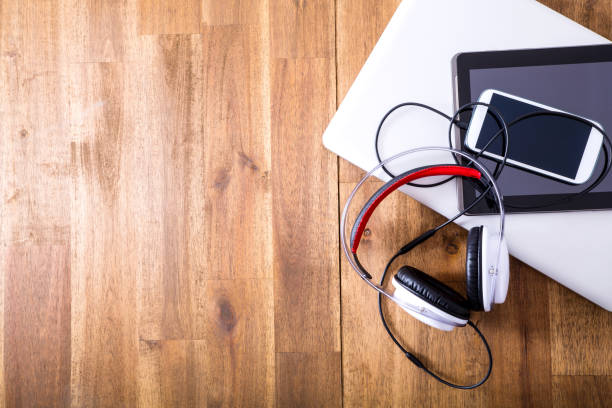
You finally got a headset. Maybe it came with a console, maybe it was a gift. You plug it in, load a game, and something feels off. Footsteps are muddy. Gunshots are either whispers or explosions. Your friends say you sound like you’re talking through a tin can. The good news is that most gaming headset problems are not about expensive hardware. You do not need to become an audio engineer. You just need to know what to check and in what order.
Start with the physical connection. If your headset uses a 3.5mm jack, make sure it is pushed all the way in. If it has separate mic and headphone plugs, make sure they are in the right ports. If you use USB, try a different port, especially one directly on the computer or console instead of a hub. Cheap hubs and front-panel ports can add noise or cut volume. If you use wireless, check the dongle. A USB dongle hidden behind a metal case or plugged into a monitor can cause dropouts and crackling. Keep the dongle away from USB 3.0 ports and Wi-Fi antennas.
Next, check the platform settings. On Windows, right-click the speaker icon and open Sound settings. Make sure the correct output device is selected. Then go into the device properties and disable any enhancements you did not ask for. Bass boost, virtual surround, and loudness equalization often make games sound worse, not better. On PlayStation, go to Settings, Sound, Audio Output, and set the output to the headset. If you are using a TV and a headset, make sure the TV is not still trying to send audio to its own speakers.
Then deal with the game’s own audio settings. Many games have separate sliders for master volume, effects, music, voice, and dynamic range. If you cannot hear footsteps, lower the music and raise effects. If explosions drown out everything, change the dynamic range from home theater or night mode to something more compressed, like headphones or small speakers. Some games have a headphone mode that improves positional audio. Turn it on. Also turn off any 3D audio or spatial sound in the game if you are already using a virtual surround feature at the system level. Stacking two surround processors makes games sound worse, not more immersive.
Your microphone matters too. If people say you sound far away, bring the mic closer to your mouth. Most headset mics work best about a finger’s width from your lips, slightly off to the side so you do not breathe directly into it. If your voice is too quiet, raise the mic level in your system settings, not in the game. If it is too loud and clipping, lower it. Use push-to-talk if your keyboard is loud. If your headset has a detachable mic, make sure it is fully seated. And if you use a wireless headset, check whether the mic boom is muted by a physical button or a software toggle.
Comfort and fit change sound more than people admit. A loose headset lets outside noise in and bass out. Worn-out ear pads flatten and leak sound. If your ears hurt after an hour, try thicker pads or a different headband adjustment. If the headset feels too tight, stretch it gently over a box overnight. If it feels too loose, a simple fabric headband cover can add grip. A good seal improves immersion, makes footsteps clearer, and lets you hear quiet details without cranking the volume.
Finally, know when to stop. A built-in headset mic will never sound like a dedicated microphone. A wireless headset will never be as latency-free as a wired one. That is fine. Your goal is not studio perfection. Your goal is to hear the game, talk to your team, and enjoy yourself without a headache. Fix the connection, clean up the settings, lower the music, raise the effects, and get the mic close. That will solve most bad headset problems before you spend another dollar.