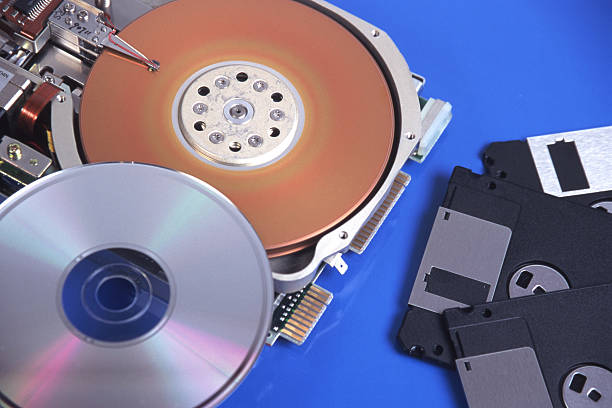
Your computer is not a vault. It is a machine with delicate chips, moving parts if you still use a hard drive, and a limited sense of self-preservation. One day it will fail. The drive may start clicking. Coffee may land on the keyboard. Ransomware may lock every file and ask for money. If the only copy of your photos, taxes, game saves, and half-finished novel lives on that one device, you do not have a backup. You have a countdown clock.
The fix is not expensive or mysterious. It is called the 3-2-1 rule, and it is the closest thing data safety has to a seatbelt. Keep three copies of anything important. Store them on two different kinds of media. Keep one copy somewhere else entirely. That sounds like overkill until the first time a drive dies and you realize how much of your life was riding on a tiny circuit board.
A copy is not the same as a sync. This trips up almost everyone. If you use cloud storage that mirrors your folders, that is convenient, but it is not a full backup. Delete a file by accident, and the sync deletes it everywhere. Get hit by ransomware, and the encrypted version can sync to the cloud too. Sync is for convenience. Backup is for rescue. You want both, but you should know which one you are relying on.
In practice, the first copy is the working file on your laptop or desktop. The second copy lives on an external drive. That could be a portable SSD, a desktop hard drive, or a drive in a USB enclosure. If your laptop has limited ports, a good dock or USB-C hub makes this easier. Plug in the drive, let backup software run, and unplug it when finished. For extra safety, keep the backup drive offline most of the time. Ransomware cannot encrypt a drive that is not connected.
The third copy goes off-site. That can be a cloud backup service, not just a sync folder. It can also be a second external drive that you rotate to a friend’s house, a safe deposit box, or your desk at work. The point is simple: if your home loses power, gets flooded, or is broken into, your files still exist somewhere else. Cloud backup usually costs a few dollars a month. Rotating a drive costs the price of the drive and a little discipline. Both beat losing everything.
Hardware matters, but you do not need to be a gearhead. For backups, a plain external hard drive is often the best value. SSDs are faster and tougher, but they cost more per terabyte. If you buy an enclosure for your own drive, make sure it fits the right size and connection. USB-C is current, but USB-A still works with the right cable. Avoid flimsy docks that disconnect mid-transfer. A backup that fails because of a cheap hub is still a failed backup.
Software should be boring. You want automatic, scheduled backups that run without you remembering. Windows has File History and Backup, and Mac has Time Machine. There are also paid tools with more control. Set a schedule, let it run, and then do the part most people skip: test a restore. A backup you have never restored from is a hope, not a plan. Pick one file, delete it from your main computer, and recover it from the backup. If that works, you have earned some peace of mind.
When a drive fails, do not panic or experiment. Check the simple stuff first. Try a different cable, port, or dock. If the drive is in an enclosure, move it to another enclosure to rule out a bad controller. If it makes strange noises or disappears repeatedly, stop using it. Do not run repair tools on a failing drive if the data is precious. Do not freeze or shake it. Those tricks usually make professional recovery harder and more expensive. If the files truly matter and you have no backup, a recovery lab may be your only option, and it will cost more than any external drive you ever bought.
The best recovery strategy is still the boring one: have another copy before you need it. Start small. Back up the folders you would cry over losing. Then add more. Keep one copy off-site. Check your restores once or twice a year. It takes less time than scrolling through old photos, and it turns a disaster into an inconvenience.