A monitor stack sounds simple: put one screen above another and enjoy twice the space. In practice, the difference between a command center and a stiff neck comes down to small details. The goal is not a wall of glowing rectangles. It is putting the right information in the right place without spending a fortune or creating a cable disaster.
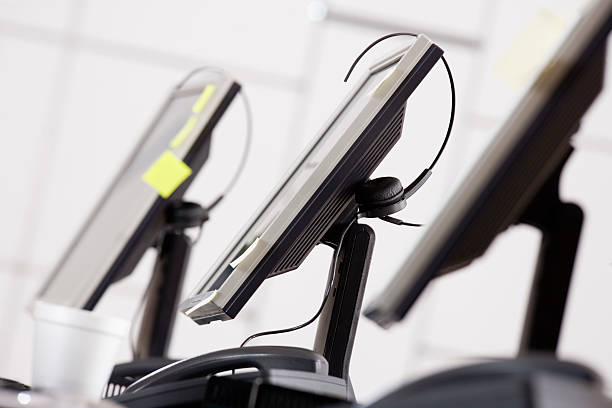
Start with your body, not the screens. Sit normally, then measure where your eyes land when you look straight ahead. That is the top of your main monitor, or slightly below it. Your primary screen should be centered and about an arm’s length away. The second screen goes above it, tilted down toward your face. If you have to crane your neck to read the top screen, it is too high. A stack should let you glance up with your eyes, not lift your chin.
Next, decide how to hold everything up. If your monitors have VESA mounting holes, a monitor arm or tall desk stand gives you control. Check the weight limit before buying, because a cheap arm that slowly droops is worse than no arm. A single tall pole with two vertical mounts can work well, but make sure the lower mount does not block ports. If your desk is thin, glass, or has a lip, a clamp may not fit safely. Measure the desk thickness and the distance to the wall. A grommet mount can be sturdier, but do not drill into a desk you love.
Matching monitors is nice, not required. A newer main screen and an older upper screen can work beautifully if you set expectations. Use the top screen for chat, email, music, reference documents, or a calendar. Keep color-critical work and fast games on the main screen. If the displays have different resolutions, adjust scaling until text looks roughly the same size when you move a window between them. Mixed refresh rates can cause stutter or cursor weirdness, so set the primary display to the refresh rate you care about most.
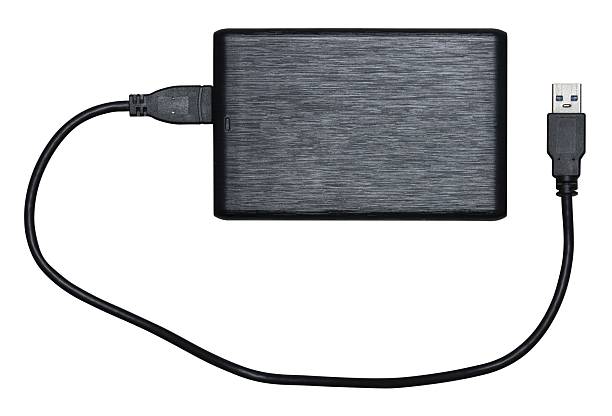
Cables are the hidden enemy of every monitor stack. When screens go up, cables want to hang down like vines. Use velcro ties, adhesive clips, or a simple raceway to guide them along the arm or pole. Keep power bricks off the floor and label the ones you cannot identify. A USB hub on the desk saves you from crawling behind the setup every time you plug in a drive. If you use a laptop, a single docking station can turn the whole stack into a one-cable connection. That protects your ports and makes you more likely to use the setup.
Ergonomics matter more than aesthetics. Put your keyboard and mouse close so your shoulders stay relaxed. The main screen should be centered on your nose. The top screen should be angled down slightly, with its bottom edge just above the main screen. Do not put your most-used window on the top screen if you have to read it for hours. Save that space for information you check in short bursts. If you wear progressive lenses, a high top screen can be uncomfortable. In that case, consider a side-by-side setup or a lower stack. Take breaks and look away. Even a perfect stack cannot undo eight hours of staring.
Software makes the stack feel intentional. In your display settings, arrange the top screen above the main one so your mouse moves naturally. Set the primary display to the one directly in front of you. Use window management tools or built-in snap features to park windows in predictable zones. Keep the taskbar or dock on the main screen only unless you truly need it everywhere. If you use virtual desktops, assign one to communication and one to focused work. The stack should reduce window shuffling, not add another layer of confusion.
Finally, resist the urge to buy everything at once. Start with the monitor you have and a sturdy arm or stand. Adjust the height, tilt, and distance. Move the top screen down an inch, then another. The perfect monitor stack is not the most expensive one. It is the one that lets you work, play, and create without thinking about your neck or cables. Build it slowly, and it will disappear into the background.