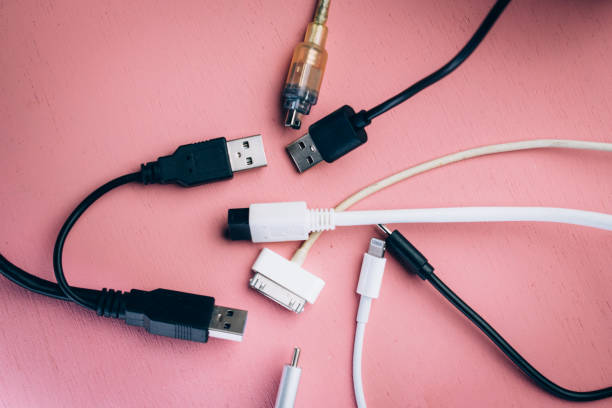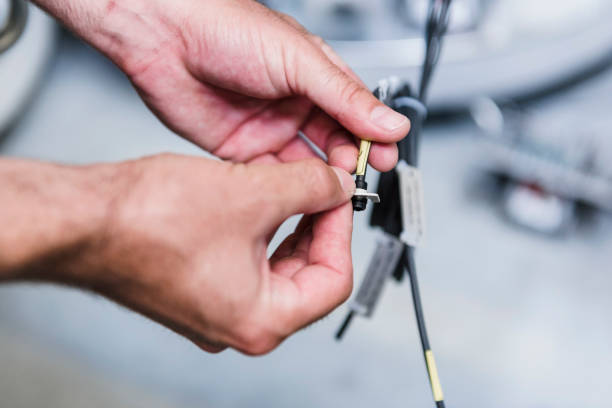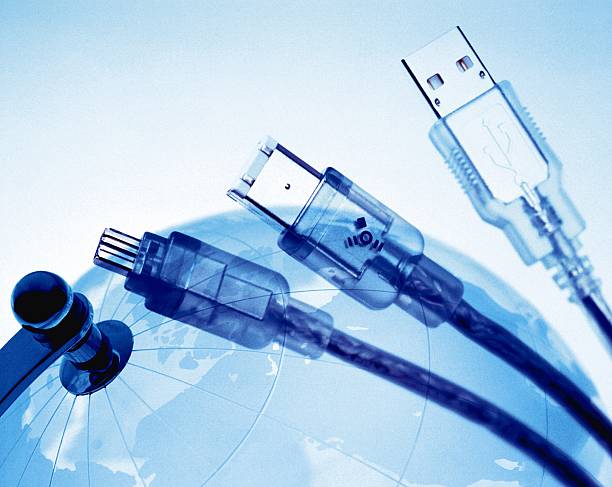
It is rarely the phone. Cable failure usually starts at the connector. Cables are wear items. The weak point is where the metal plug meets the plastic housing. Every yank, bend, and tight wrap pulls on tiny wires inside. Over time, shielding breaks, copper strands fray, and charging gets finicky. Data transfers slow or drop. Most cable care is free and takes less time than replacing a cable.
Stop unplugging by the cord. Always grip the connector. Pulling a cable by its cord is like pulling a plant by its stem. The copper inside is thin and the solder joints are small. Do not bend the cable sharply right at the plug. A right-angle adapter can help in tight spaces. Avoid letting weight hang off the connector. If your laptop is charging on the couch and the cable bends under your leg, that pressure adds up.
How you wrap a cable matters. Do not wrap it around your phone or power brick. Do not fold it in half. Make loose loops about the size of your hand. If you know the over-under method, use it. If you do not, alternate the direction of each loop so the cable does not twist. Secure the coil with a velcro strap or soft tie. Twist ties and zip ties can crush the insulation and copper. Leave slack at both ends. For travel, coil cables loosely in a pouch. Never wrap a cable tightly around a charger, because heat and tension degrade the insulation.
Heat is another silent cable killer. Do not leave cables on a dashboard, near a heater, behind a gaming PC exhaust, or under a rug where they get stepped on. Heat softens insulation and makes copper brittle. If a cable feels warm during charging, that can be normal, but hot is not. Use certified chargers and cables that meet the spec for your device. Cheap cables often have thin wires and poor connectors, which causes heat and voltage drop. For laptops, use the charger wattage recommended by the maker.
Dust and lint are sneaky. Phone ports collect pocket lint, especially Lightning and USB-C ports. If a cable does not click in, do not jam it harder. Power the device off and inspect the port with a flashlight. Use a wooden toothpick or plastic dental pick to gently lift out lint. Never use a metal pin. Be careful with compressed air because it can push debris deeper. A lint-free swab lightly dampened with isopropyl alcohol can clean contacts, but unplug everything first and let it dry. For HDMI, USB, and Ethernet ports in dusty areas, use dust caps.
Strain relief is the part you should respect. The molded plastic or springy section where the cable meets the plug absorbs bending. Do not defeat it by bending the cable right at the plug. If a cable is too short, use an extension instead of stretching it. Route desk cables with clips so their weight does not pull on ports. Leave a service loop behind monitors and PCs. Gamers should pay extra attention to controller cables, which get yanked during intense moments. A breakaway adapter or wireless controller can save the port. Dongles and hubs should not hang off a laptop port with drives attached.
Storage and labeling keep cables alive. Store them loosely coiled and separated. Use velcro or silicone ties instead of rubber bands, which get sticky and rot. Keep everyday cables in one pouch and rare cables in another. Label both ends with tape or a label maker. That prevents digging, yanking, and unplugging the wrong thing. For backup drives, keep the cable with the drive but do not wrap it tight. For monitors, leave enough slack behind the stand so moving the screen does not stress the ports.
If insulation is cut, the connector is bent, pins are discolored, the cable feels hot, or charging only works at a certain angle, replace it. Do not tape and hope, especially for high-power charging or data transfer. A damaged cable can damage the port or start a fire. Keep a few spares. Every few months, unplug your most-used cables, inspect them, clean any lint, and re-coil them loosely. Teach everyone in your home to pull the plug, not the cord. Treat cables like tools instead of disposable strings, and they will last longer and fail less often.