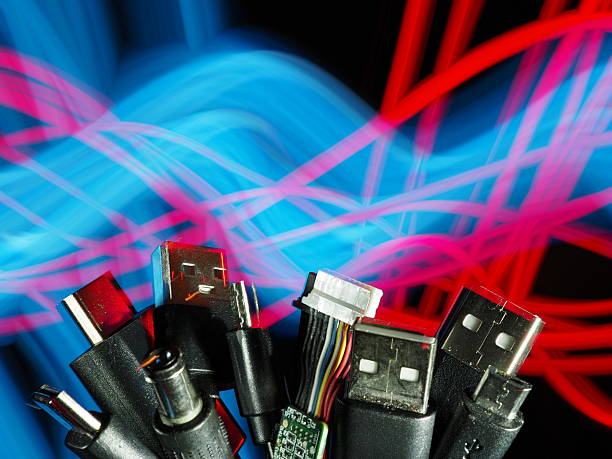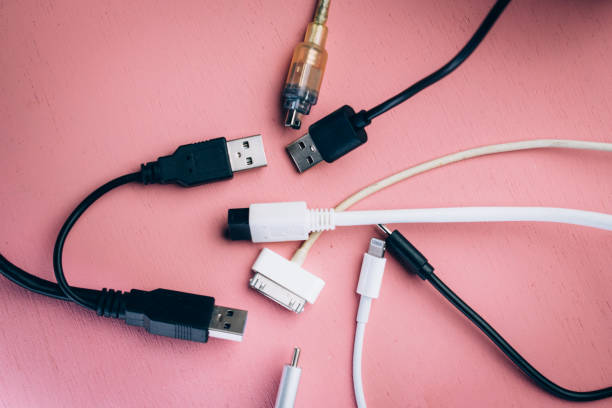
USB-C has won. It is on phones, laptops, tablets, monitors, and drives. The connector is small, reversible, and easy to plug in. That is where the simple part ends. Two USB-C cables can look identical and do completely different jobs. One might charge a laptop at full speed and carry a 4K monitor signal. Another might only trickle-charge a phone and never pass a file. If you have plugged in a new drive, dock, or monitor and gotten nothing, you have met this problem. A few port basics save money and frustration.
Think of USB-C as a shape, not a speed. It is a physical connector standard. Behind that shape, the electronics can speak many languages. A USB-C port might use USB 2.0, USB 3.2 Gen 1, USB 3.2 Gen 2, USB4, or Thunderbolt. The names are messy, but the numbers matter. USB 2.0 moves data at 480 megabits per second, fine for a keyboard but painfully slow for an external SSD. USB 3.2 Gen 1 does 5 gigabits per second, Gen 2 does 10, and USB4 or Thunderbolt can do 20, 40, or 80. A cable that came with a phone may charge fine but have no high-speed data wires inside. That is why a cheap cable can charge a device but fail when you connect a drive.
Power is separate. USB Power Delivery lets devices negotiate wattage. A phone may want 20 watts, a tablet 30, a thin laptop 65, and a gaming laptop 140 or 240. Cables have limits too: 60 watts, 100, or 240. An underrated cable can make a laptop charge slowly or not at all. An underrated charger may run the device but not fill it while you work. Many good cables include an E-marker chip that tells the charger what is safe. Without it, a high-power laptop may refuse to pull full speed. For docks, power pass-through matters. The dock needs enough power for its ports and enough left over to charge your laptop.
Video over USB-C is another trap. Not every USB-C port can send a picture to a monitor. The port and cable must support DisplayPort Alt Mode or Thunderbolt. If they do not, no simple adapter will add that ability. Two laptops with USB-C ports can behave differently. One might drive a 4K monitor with a single cable. Another might need a USB-C to HDMI adapter, and only if the port supports video output. Some USB-C ports are data-only. Some are charging-only. Some are full-featured. Before buying a dongle, check your specs for video output. Then buy a cable rated for the resolution and refresh rate you want.
Docks and hubs multiply your ports, but they do not create unlimited bandwidth. A dock is a hub with extra talents: video outputs, Ethernet, card readers, USB-A, audio, and power delivery. When you plug an external SSD, webcam, Ethernet, and two monitors into one USB-C dock, all that data shares the same pipe. For email and browsing, that is fine. For editing video from a fast drive while running a 4K display, it can feel cramped. Thunderbolt docks offer more headroom for heavy creative work. Cheaper USB hubs are great for keyboards, mice, and thumb drives, but bus-powered hard drives may disconnect if they lack power. A powered hub or dock solves many mystery dropouts.
Storage is where cable confusion gets expensive. An external SSD with USB-C can be very fast. But a USB 2.0 cable will crawl. If the port is 5 gigabits per second, the drive will never reach 20. For backups, reliability matters more than peak speed, but speed affects how often you actually back up. Use the cable that came with the drive, or buy one clearly rated for data. Watch out for charge-only cables. They may fit perfectly and have no data wires at all. That is a common reason a new drive never appears on your computer. If you build an enclosure, match it to the port. A SATA SSD tops out around 550 megabytes per second, so USB 3.2 Gen 2 is plenty. A fast NVMe drive needs USB4 or Thunderbolt.
The bottom line is simple. USB-C is a shape, not a promise. Check power, data, and video before you buy. Match cable and port to the task. Label your cables at home so you do not grab the slow one for a backup. A few good cables and a little tape prevent most dongle drama.