Your phone and tablet hold more of your life than most people realize. They are your camera, address book, calendar, notebook, ticket holder, map, and entertainment center. When one gets lost, stolen, dropped in a lake, or just refuses to turn on, that loss feels personal. The cloud is the easy answer, and it is a good one, but it should not be your only answer. With a little planning, you can back up your phone and tablet to hardware you own, keep your data private, and avoid renting your memories back from a tech company forever.
First, understand what you are actually backing up. A full backup includes settings, messages, call history, app data, contacts, calendars, and sometimes passwords. A photo sync only copies pictures and videos. Those are not the same thing. On an iPhone, iCloud Backup covers a lot, but if you use iCloud Photos, your pictures may live in a separate synced library. On Android, Google One can restore apps, contacts, and some settings, but app data varies wildly. Some apps back up to their own servers, some do not, and some pretend to. Treat any cloud service as one layer, not the whole roof.
The classic rule for serious backups is three copies, on two different types of storage, with one copy kept somewhere else. For your phone or tablet, that means the original on the device, a local backup on a computer or external drive, and an offsite copy in the cloud or on a drive stored at a friend’s house or safe deposit box. If your only backup is an SD card that never leaves the tablet, you do not have a backup. You have a second place for the same disaster to find your files.
For iPhone and iPad, the most reliable local backup is still a computer. Connect the device to a Mac with Finder or to a Windows PC with the Apple Devices app. Choose to encrypt the backup and set a password you will remember. An encrypted backup includes Health data, saved Wi-Fi passwords, and Keychain items that an unencrypted backup leaves out. You can store that backup on an external SSD if your computer’s drive is small. Do it before a big trip, a repair, or a major software update. For photos, import them into your computer’s photo app and also copy the original files to an external drive. Do not rely on a single library file.
Android phones and tablets offer more freedom, but also more mess. Plug the device into a computer with a USB cable, switch the connection to file transfer, and copy the folders that matter. DCIM holds camera photos and videos. Pictures, Movies, Documents, Downloads, and Music are usually self-explanatory. For texts, use a reputable SMS backup app that exports to a file you can store elsewhere. Samsung users can use Smart Switch. Google One handles some app and settings data, but not everything. An OTG flash drive lets you copy files directly from the phone without a computer, which is handy for travel. It is not a full system backup, but it is far better than nothing.
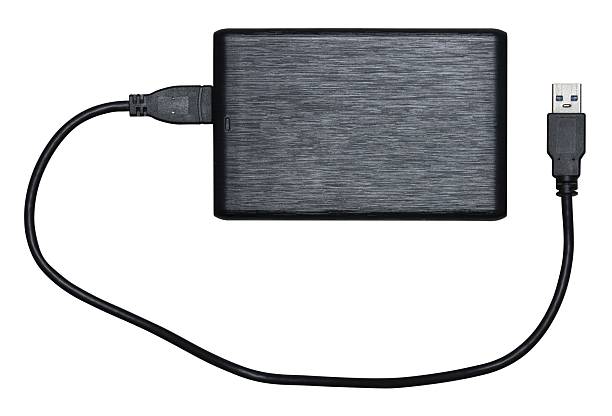
Choose your storage with your habits in mind. External SSDs are fast, quiet, and resistant to bumps, but they cost more per terabyte. External hard drives are cheap and huge, but they are fragile and dislike being dropped. Flash drives and SD cards are convenient, but they get lost easily and can fail without warning. A network-attached storage box at home can back up several devices automatically, but it is still in the same building. Label every drive. Keep the right cables and dongles with them. Use exFAT if you move between Windows and Mac, or a native format if you live entirely in one ecosystem. Encrypt local backups and keep the password somewhere safe. A lost password turns a backup into a paperweight.
Automate what you can and schedule the rest. Let cloud photo sync run in the background if you are comfortable with it, but also make a monthly local backup. Put a reminder on your calendar. Back up before weddings, births, concerts, and any event where you will take hundreds of photos. Rotate two drives, keeping one away from home. Test your backups by restoring a few photos, a contact, and a message thread. A backup you have never tested is not a backup. It is a hope. Keep your backup drive unplugged when you are not using it, which helps protect it from ransomware and power surges. Use two-factor authentication on your cloud accounts.
You do not need an expensive setup to be safe. A computer, one external drive, and a cheap cloud tier can cover most people. If you already pay for cloud storage, keep it for offsite protection, but do not let it be the only copy. Your phone and tablet are not permanent. They are tools, and tools break. Backups are boring until the day they save you. Pick a simple routine, write it down, and repeat it. That is the whole strategy.