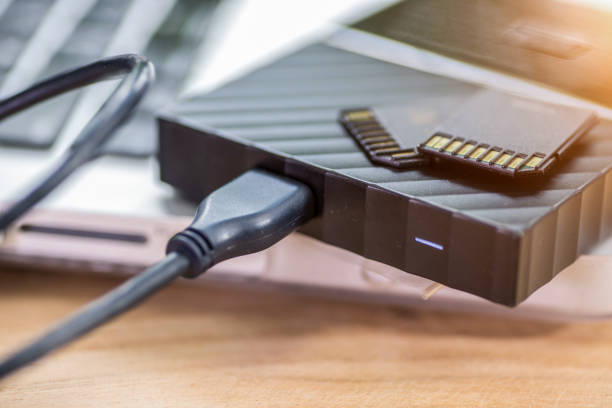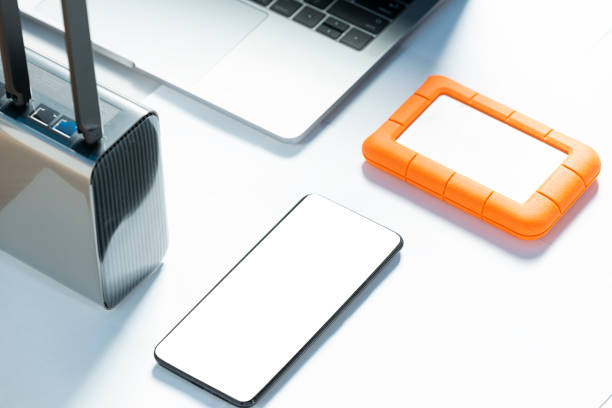
If you make videos, podcasts, photos, streams, or a growing pile of phone clips, storage isn’t glamorous until it fails. You don’t need to understand RAID, NAS, or file systems to build a setup that keeps your work safe and your editing smooth. You just need to match the drive to the job, keep copies in more than one place, and stop treating your computer’s internal drive as a forever home. Think of storage like a kitchen. Your internal drive is the counter where you edit. External drives are the pantry and fridge. Cloud storage is the off-site freezer. You need all three, but they don’t need to be expensive.
Start with your working drive. The most common mistake is filling the boot drive until the computer crawls. Video editing needs free space for cache, previews, and temporary files. Keep at least fifteen to twenty percent of any drive empty. If you edit 4K video, an external solid-state drive over USB-C is the sweet spot. SSDs have no moving parts, so they survive bumps better and read data fast enough for smooth scrubbing. You don’t need the fastest, most expensive model. A mainstream NVMe SSD in an enclosure, or a reputable portable SSD, will feel dramatically better than a spinning hard drive. For photos, audio, and documents, a regular external hard drive is still fine for archiving. It’s slower, but cheaper per terabyte, which matters when project files stack up.
Capacity is where people overspend or underspend. Don’t buy for today’s project. Buy for the next year of projects. If you shoot video weekly, one terabyte disappears faster than you think. Two to four terabytes is a comfortable starting point for many creators. If you work with large RAW photos or high-bitrate video, go bigger. But don’t buy the biggest drive you can afford and use it as your only copy. A bigger single drive just means a bigger single point of failure. Instead, split your budget: one fast working drive, one big archive drive, and one backup plan.
The backup plan is non-negotiable. The classic rule is three copies of anything you can’t recreate, on two different types of media, with one copy off-site. Your project lives on your working drive. A copy goes to an external archive drive. Another copy goes to cloud storage or a drive you keep at a friend’s house or in a fireproof safe. Cloud services like Backblaze, iDrive, or Google Drive can work, but check upload limits and costs. For large video projects, cloud-only can be slow, so many creators use cloud backup for finished projects and important raw files, not every temporary render.
Speed labels can be confusing. USB 3.0, USB 3.2 Gen 2, Thunderbolt, and USB4 all sound similar. For most creators, a USB-C SSD that delivers around 1,000 megabytes per second is plenty. If you edit multiple streams of 8K video, you might need Thunderbolt, but that’s a professional edge case. Don’t buy a drive just because it says “gaming” or has RGB lights. Buy for reliability, warranty, and consistent speed. Check reviews that test sustained write speeds, not just peak numbers. Cheap drives often slow down dramatically when the cache fills.
Think about cables and ports. A fast drive connected to a slow port is like a sports car in a traffic jam. If your laptop only has USB-A, use an adapter, but make sure it supports the same speed. Avoid daisy-chaining too many bus-powered drives from one port. If drives disconnect during editing, you can corrupt a project. Use a powered USB hub or dock for multiple drives, especially spinning hard drives.
Finally, make storage boring. Label drives. Keep a simple folder structure by year, project, and asset type. Eject drives properly. Replace drives every three to five years, or sooner if they start clicking or acting weird. SSDs can fail without warning, so backups matter even more. The goal isn’t to build a server room. It’s to sit down, edit without stutter, and know your work is safe if a drive dies. Get one fast working drive, one roomy archive drive, and one automatic backup. That setup will carry you from your first upload to your thousandth.