Your phone or tablet is probably not full of important apps. It is full of memories. A few minutes of 4K video can eat a gigabyte, and a year of screenshots, burst photos, and group chat videos can eat dozens. You do not need to delete the good stuff or buy a new device just to take one more photo. You need a simple offloading routine and the right storage gear.
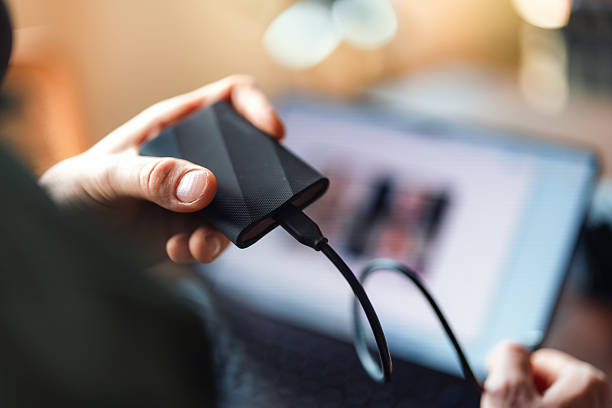
Storage comes in three flavors: internal, cloud, and external. Internal storage is fast and always with you, but it is fixed. Cloud storage is convenient, but it depends on Wi-Fi, and free tiers fill up fast. External storage is the practical middle ground. That means a USB-C flash drive, a portable SSD, or an SD card in a reader. For phones and tablets, you connect these with a dongle or a small hub. Modern Android phones and USB-C iPads can use USB-C drives directly. Older iPhones and iPads need a Lightning adapter, and some drives may need extra power, so a simple flash drive is often easier.
Start with videos. They are the biggest space hogs. Then move photos, especially bursts, screenshots, and downloaded images from messaging apps. After that, look at offline movies, podcasts, music, and map data. Clearing app caches can free a little space, but caches refill. Offloading is a plan.
To offload to an external drive, plug the drive into your phone or tablet. On Android, open your file manager or Files by Google. Find the DCIM folder, then the Camera folder. Select the photos and videos you want to move. Copy them to the external drive first. Do not move them yet. Paste them into a folder you will recognize, such as Phone Backup 2025. Wait for the transfer to finish. Then open the drive and check that the files are there. Play a video. Open a photo. Only after that should you delete the originals from your phone. On iPhone and iPad, the Files app can work with external drives. In Photos, select the items, tap Share, then Save to Files, and choose the external drive. It is a little clunky, but it works.
File format matters. If you want the drive to work with Android, iPhone, Windows, and Mac, use exFAT. It is the safest cross-platform choice. If the drive is formatted for only one computer system, your phone may read it but not write to it. Formatting erases the drive, so do it before you load it up. Buy from a known brand. Cheap no-name drives are a great way to lose your vacation photos.
Cloud storage should be your second copy, not your only copy. iCloud Photos, Google Photos, Dropbox, and OneDrive can all back up your camera roll over Wi-Fi. On iPhone, Optimize iPhone Storage can keep smaller versions on the phone while full-resolution files live in iCloud. On Android, Google Photos can free up space after backup. These features are helpful, but they depend on your account and subscription. Treat the cloud as a safety net, not a replacement for a drive you control.
You can also use a computer as a transfer station. Plug your phone in with a cable. On Windows, open File Explorer and look for your phone under This PC. Open DCIM and copy the folders over. On a Mac, use Image Capture or Photos. On Android, unlock the phone and choose File Transfer if prompted. On iPhone, tap Trust when asked. Copy the files, check them, and then delete them from the phone. This is still one of the fastest ways to move a huge batch of videos.
A good backup strategy does not need to be complicated. Keep three copies of anything you cannot lose. Keep them on two different types of storage. Keep one copy somewhere else, like the cloud or a drive at a friend’s house. For most people, that means the phone, an external drive, and a cloud account. For tablets, a USB-C hub with an SD card slot and a USB-A port makes offloading much easier.
Finally, make it a habit. Once a month, or after every trip, offload your photos and videos. Keep at least ten to twenty percent of your phone’s storage free. Updates, camera apps, and everyday caching need breathing room. Offloading is not glamorous, but it is the cheapest upgrade your phone or tablet will ever get. It protects your memories and keeps your device fast.