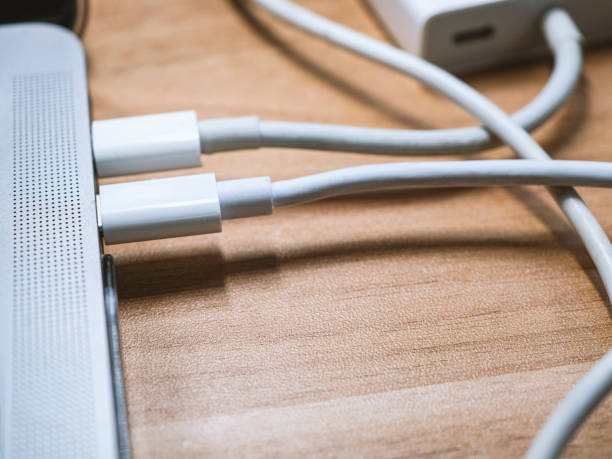
That tiny oval port on your laptop, phone, or tablet looks simple, but it can carry power, data, video, and audio through one connection. The catch is that not every USB-C port offers every feature, and not every cheap adapter does what you expect. Dongles and adapters are bridges between your device and the gear you want to use. Once you know what those bridges can carry, you can buy the right one.
An adapter changes one plug into another. A dongle is a short cable with a different port on the end. A hub adds several ports. A dock is the powered box that connects your laptop to a monitor, keyboard, mouse, Ethernet, storage, and charging through one cable. The names get used loosely, but the job is the same: matching the ports your device lacks with the ports your accessories need.
First, decide what you actually need to plug in. For an old USB mouse or a flash drive, a tiny USB-C to USB-A adapter is enough. For a monitor, you need an adapter that supports video output, often called DisplayPort Alt Mode. Many USB-C ports can send video, but some cannot. A budget phone or laptop might charge and transfer files yet never send a picture to a screen. No adapter can add a feature the device lacks, so check the specs first.
Power is the next trap. Many hubs include pass-through charging: you plug your laptop charger into the hub, and the hub passes power to your laptop. Wattage matters. If your laptop needs 65 watts and the hub only supports 60 watts, your laptop may charge slowly or not at all while you use accessories. For a power-hungry laptop, look for 85 watts or more. Phones and tablets usually need less.
Data speed is another place where cheap adapters cut corners. USB 2.0 is fine for a keyboard, mouse, or printer, but miserable for an external SSD. If you move large video files, photo libraries, or game installs, look for USB 3.2, USB4, or Thunderbolt. The cable matters too. A fancy hub connected with a charge-only cable will not move data at full speed, so use a cable rated for the speed and power you need.
Video output deserves a warning. Many USB-C to HDMI adapters claim 4K support, but only at 30Hz, which can feel choppy. For a comfortable desktop, aim for 4K at 60Hz. If you want two monitors, check whether the adapter and your computer both support dual displays. Some laptops limit external screens even if the dock has more ports. Macs with Apple silicon are especially particular, though DisplayLink docks can add screens with a software driver. That works for office tasks but not fast-paced gaming.
Ethernet is an easy upgrade. A USB-C to Ethernet adapter gives you a stable wired connection for video calls, large backups, and online gaming. Look for gigabit or 2.5-gigabit speed if your network supports it. Storage adapters matter too. A USB-C SD card reader is great for camera files, but high-speed shooters should buy one that supports UHS-II. For external drives, match the enclosure to the drive inside. An NVMe drive needs an NVMe enclosure, while an older SATA drive needs a SATA adapter.
A good dock can turn a laptop into a full desk setup. You plug in one cable and get charging, monitors, network, audio, and USB ports. Powered docks are usually more stable than bus-powered hubs because they do not steal power from your laptop. Thunderbolt and USB4 docks cost more, but they are fast and dependable. Cheaper USB-C docks can be great for light use, but read reviews about heat, disconnects, and monitor compatibility. Firmware updates sometimes fix bugs, so check support.
List the ports you need, check the features your device supports, and buy an adapter or dock that matches. Do not pay for Thunderbolt speed if you only need a mouse. Do not buy a tiny dongle if you need to charge, drive two monitors, and copy files at once. A little research saves frustration. Dongles and adapters are not glamorous, but the right one can make your current gear feel new again.