Input lag is the delay between something happening on your screen and your controls actually doing it. It is not the same as low frame rate, though the two can feel similar. Low frame rate looks choppy. Input lag feels like your mouse, keyboard, or controller is a beat behind your brain. The good news is that most people can cut a surprising amount of that delay without spending a dime on new hardware. You just need to clean up a few settings, remove a few bottlenecks, and stop letting your setup work against you.
Start with the screen, because that is where a lot of hidden delay lives. If your monitor or TV has a picture mode called Game Mode, turn it on and leave it on. Movie and vivid modes often add processing that makes images look smoother or brighter, but that processing costs time. Look for settings like motion smoothing, dynamic contrast, and noise reduction, and switch them off for gaming. If your display has an overdrive setting, try the middle option first. The highest setting can reduce blur but sometimes adds a strange halo effect, and the lowest setting can feel smeary. You want the setting that looks clean in motion without obvious ghosting. Also check that your resolution and refresh rate are actually set correctly in your computer or console settings. A monitor capable of a high refresh rate can still run at a lower one if nobody told it otherwise.
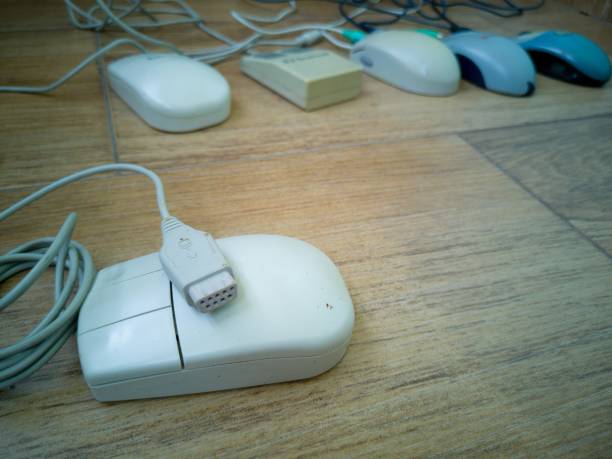
Next, look at how your devices connect. Wired is usually more predictable than wireless, especially for competitive games. If you use a wireless mouse or keyboard, plug the little receiver into a USB port that is not buried behind a metal case or crowded by other wireless devices. A short extension cable can move the receiver closer to your hand and away from interference. Check the battery level too. A dying wireless mouse can start behaving like it is thinking about every click. For controllers, try a cable if the game supports it. Bluetooth is convenient, but it is not always the fastest or steadiest path. And do not ignore USB ports. Some ports on the front of a computer or on a hub may share power or data in ways that add tiny delays. Try plugging your main mouse and keyboard directly into the back of the computer, then test whether things feel more immediate.
Your software settings matter just as much. Turn off Vsync if you are playing a fast game and you can tolerate a little screen tearing. Vsync waits for the display to finish drawing before showing the next frame, which can make your controls feel heavy. If tearing bothers you, cap your frame rate a little below your monitor’s refresh rate instead. Use fullscreen mode when possible, because windowed modes sometimes add extra processing. Close background apps that hog the processor or network, especially browser tabs with video, chat apps, and game launchers that like to update in the background. On a laptop, plug in the power and set the performance mode to high or balanced rather than battery saver. Power saving is great for a coffee shop, but it can quietly slow down your USB devices and graphics.
Finally, think about comfort and consistency. A messy desk does not directly create input lag, but it creates frustration, and frustration makes every tiny delay feel worse. Give your mouse room to move, keep your keyboard stable, and set your chair and monitor at a height that lets you react without straining. Clean your mouse sensor and mousepad, and check for hair or dust under the mouse. Update your mouse or keyboard software only if you actually need it, then set your polling rate to a sensible level and leave it alone. More is not always better if it makes your computer work harder for no real gain. Test one change at a time, play a few minutes, and keep what feels sharper. The goal is not a laboratory-perfect setup. It is a setup that gets out of your way so your hands and eyes stay in sync.