Your phone or tablet is probably lying to you. It says it has 128GB, but after apps, photos, videos, and system files, you get maybe 90GB to play with. That fills up faster than you expect. The good news is you do not need to buy a new device just because storage is tight. You just need a plan that matches how you actually use your gadget. Keep the stuff you need close, move the stuff you rarely touch somewhere safe, and make sure nothing important lives in only one place.
Start by finding out what is eating your space. On iPhone or iPad, open Settings, then General, then Storage. On Android, open Settings, then Storage. You will see a breakdown by category. Photos and videos are usually the biggest culprits, followed by apps and games. Messaging apps can also hide years of images and videos. Once you know the villain, you can stop guessing. Deleting random apps will not help much if your camera roll is 60GB.
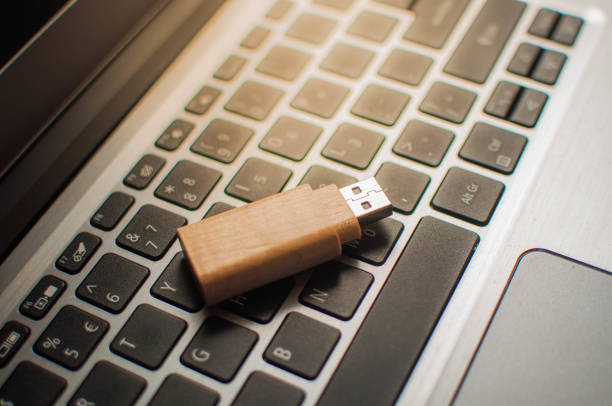
Photos and videos are the easiest win. If you use iCloud Photos or Google Photos, turn on optimized storage. That keeps small previews on your device and stores full-resolution files in the cloud. You still need space for previews, but it buys room. If you prefer not to pay, offload photos manually. Plug your phone into a computer and copy the camera roll to an external drive. On Android, use a USB-C flash drive. On iPhone and iPad with USB-C, a plain USB-C drive works. For older Lightning iPhones, use a Lightning flash drive or adapter. Copy the files, check that they open, and only then delete them from the phone. Never delete the only copy.
Expandable storage is still an option, but it depends on your device. Many Android phones and tablets have a microSD card slot. If yours does, a card is the cheapest way to add space. Buy a reputable card from a known brand, not a no-name bargain with impossible claims. Get a card rated for the speed you need. For photos and music, a basic card is fine, but for 4K video or moving large files, pay for a faster one. When you insert a new card, you can often format it as portable storage, which acts like extra space for media, or as internal storage, which lets apps use it. Internal storage mode can be slower and ties the card to that device, so use it only if you really need app space. Otherwise, keep it portable and move photos, videos, music, and downloads onto it.
For iPhones and iPads without a memory card slot, external drives are the answer. A USB-C SSD is fast, rugged, and great for video editors who need to move big files. A small USB-C flash drive is cheaper and fits on a keychain. The key is to copy files to the drive, verify them, and then remove them from the phone. If you are traveling, a wireless portable drive can create its own Wi-Fi network, so several devices can connect without cables. That is convenient, but it is slower than a direct cable and needs its own battery.
Cloud storage is not a magic dump truck. It is a sync service first and a backup service second. If you delete a photo from your phone and it syncs, it may disappear from the cloud too. Use cloud storage for convenience, but keep a separate backup for anything irreplaceable. A simple rule is three copies: one on your phone, one on an external drive, and one in the cloud. That sounds like overkill until your phone falls in a lake.
Finally, do some regular housekeeping. Clear cache in apps that hog space. Delete downloaded shows and podcasts after you finish them. Turn off automatic downloads for large media. In messaging apps, set media to save only when you choose. Review your storage monthly, not yearly. You do not need to be a tech wizard. You just need to know where your files are, keep a backup, and choose the right storage tool for the job. Your phone will feel new again, and your memories will be safer.