Most people don’t think about backups until the day a drive clicks, a laptop gets stolen, or a wrong click wipes out a folder. Then panic sets in. The good news is that you don’t need an IT department or a server room to keep your files safe. You need a simple routine, a couple of decent storage devices, and the willingness to spend ten minutes setting it up.
The easiest system to remember is called the 3-2-1 rule. You want three copies of anything important, on two different kinds of storage, with one copy kept somewhere else. For a normal person, that can mean the original files on your computer, a backup on an external drive, and a copy in the cloud or on a second drive you keep at a friend’s house. Do it for photos, tax documents, work projects, game saves, and anything you’d pay real money to get back.
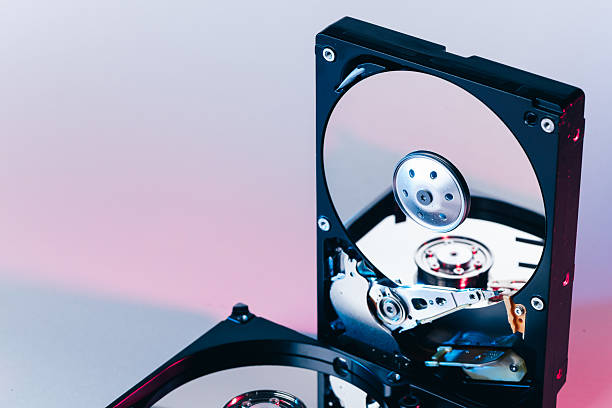
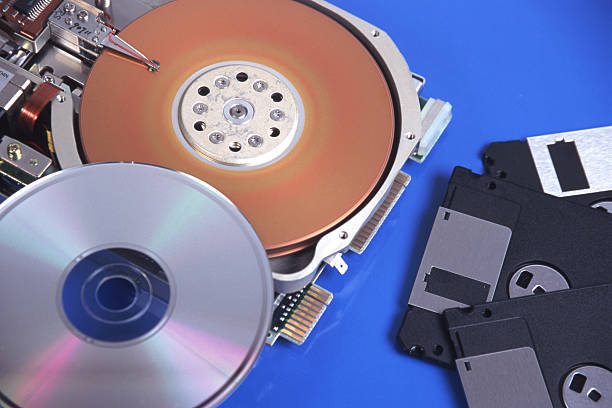
External drives are the workhorse of this plan. A plain USB hard drive with a few terabytes costs less than a night out and can hold years of photos and documents. Solid-state drives are faster and tougher because they have no moving parts, but they cost more per gigabyte. Buy a known brand and keep its cable with it.
If you have an old internal drive from a laptop or desktop, don’t toss it. A SATA-to-USB adapter or a simple dock turns it into an instant external backup drive. This is where dongles and docks earn their keep. A USB-C hub with an SD card slot lets you pull photos off a camera card without hunting for a dedicated reader. A docking station can connect a monitor, keyboard, mouse, and backup drive through one cable, which makes weekly backups less annoying.
Software can do most of the work. Windows has File History, and macOS has Time Machine. Both will copy your files to an external drive on a schedule and keep older versions so you can recover a file you deleted last month. If you want more control, there are free and paid backup programs that can clone a whole drive or sync specific folders. Set it once, plug the drive in when prompted, and let it run. Cloud services like Google Drive, iCloud, Dropbox, and OneDrive are great for offsite copies, but understand what they are. Sync is not the same as backup. If you delete a file on your computer, sync may delete it everywhere. Version history helps, but it’s not a separate backup.
Phones deserve their own plan. Photos and videos are the most common things people lose. Turn on cloud backup for your camera roll, but don’t stop there. Once a month, plug your phone into a computer or use a dongle to copy the newest photos to an external drive. If you use an SD card in a camera or drone, offload it as soon as practical.
The part most people skip is testing recovery. A backup you’ve never restored from is just a hopeful guess. Once every few months, open your backup drive and copy a file back to your desktop. Make sure it opens. If you use a full-drive clone, try booting from it if you can. This catches problems like a failed drive, a corrupted backup, or software that stopped running months ago.
For ransomware and theft, keep at least one backup disconnected. If your backup drive is always plugged in, malware can encrypt it too. Unplug the drive after each backup, or use a drive that only connects when you need it. For extra safety, keep a second drive at a relative’s house or in a safe. Encrypt sensitive backups with a strong password, and store that password somewhere you won’t lose it.
You don’t need a perfect system. Start with one folder: the one that would hurt most to lose. Copy it to an external drive today. Add a cloud copy tomorrow. Test it next week. Once that feels normal, add more folders. Data safety is not about being technical. It’s about having more than one copy before you need it. Recovery is calm when the backup already exists.