Losing a file feels like a small death. You click, and it is gone. A photo, a tax return, a save file you spent hours on. The first thing most people do is panic and download whatever recovery app promises miracles. Most data loss is not instant death. The file is often still there, but the map to it has been erased. Every time you use the drive, you risk writing new data over the old file. So stop using the device. Unplug the external drive. Stop taking photos on the phone. Do not install recovery software on the same laptop that lost the file.
Before you pay for anything, check the boring places. Look in the Recycle Bin or Trash. Open your cloud storage trash. Check Google Drive, Dropbox, OneDrive, iCloud, and Google Photos for version history and deleted items. Your email might still have the attachment. Your phone gallery has a Recently Deleted folder that lasts about thirty days. If the file was on an SD card from a camera, stop shooting on that card. Put it aside. Do not format it. The card is now evidence, and you want to preserve it.
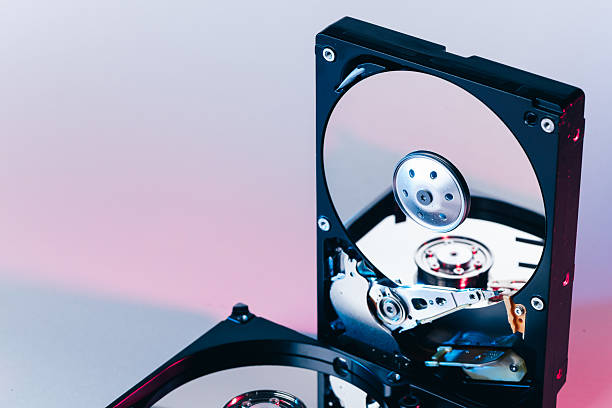
Next, figure out what kind of failure you have. A deleted file is easy. A drive that shows up but will not open is medium. A drive that clicks, beeps, grinds, or smells hot is a hardware problem. Software cannot fix a broken read head. If you hear strange noises, unplug it and call a professional data recovery company. This is expensive, but often the only safe option for mechanical drives. Do not open the drive yourself. Do not freeze it. Do not put it in rice. Those tricks belong to internet folklore, not data recovery.
If the drive is solid state, recovery can be trickier. SSDs and phones use TRIM and encryption, which can erase deleted blocks quickly. The longer you wait, the worse your odds. Memory cards and USB flash drives are also fragile. Cheap ones fail without warning. A good USB-C dock or enclosure can help you connect the drive to a healthy computer without opening your laptop. Just make sure the dock has enough power. A flaky dock that disconnects during a scan can corrupt the drive further.
If you try recovery software, install it on a different computer. Connect the problem drive through a dock or adapter. Scan it, preview the files, and recover them to a different drive. Never recover files back to the same drive. That only risks overwriting what is left. Choose software from a known company, not a random ad. Read reviews. If the data is irreplaceable, stop and get professional help. The cost hurts, but so does losing family photos or a business database.
Once you have your files back, the real work begins. A backup is not a copy on the same laptop. A backup is a copy on a different device, ideally in a different place. The classic rule is three copies, two types of media, and one offsite. For normal people, that means the original on your computer, a copy on an external SSD or hard drive, and a copy in the cloud. Use a dock or enclosure to make external drives easy to plug in. Automate the backup so you do not have to remember. Time Machine, File History, Backblaze, iCloud, and Google Drive all work. Just remember that sync is not backup. If you delete a file and it syncs, it disappears everywhere. Version history helps, but it is not a full backup.
Test your backup. Restore one file. If you cannot restore it, you do not have a backup. Eject drives safely before unplugging. Replace old drives before they fail. No storage lasts forever. Hard drives click, SSDs die silently, memory cards corrupt, and phones get lost. The best recovery plan is the one you never need because you already have a backup. So stop, preserve the evidence, recover to a new drive, and then build a simple system that runs without you. Your future self will thank you.