Your stomach drops. You click a file, a folder, a photo, and it isn’t there. Maybe you deleted it by mistake. Maybe a drive made a weird clicking sound. Maybe your phone asked to be reset and you said yes without thinking. Lost data is not always gone. Panic and random clicking are the fastest ways to turn a recoverable mistake into a permanent one.
Stop using the device. This is the most important rule. When you delete a file, the computer often doesn’t erase the content right away. It just marks that space as available. New downloads, updates, app caches, even opening a browser can write over it. If you keep using the same drive, you are gambling with the data you want back. If the lost files are on an external drive or memory card, unplug it. If they are on your main computer, avoid installing anything, avoid saving new files, and shut it down if possible. On a phone, stop taking photos, stop downloading apps, and don’t run a cleanup tool.
Check the obvious places first, gently. On a computer, look in the Recycle Bin or Trash. On a phone, check Recently Deleted in Photos, Files, or messaging apps. Many cloud services keep deleted files for thirty days or more, and Google Drive, Dropbox, OneDrive, and iCloud often have a trash or version history. If you use a backup app, open it. If you use Windows File History or macOS Time Machine, connect the backup drive and browse the timeline.
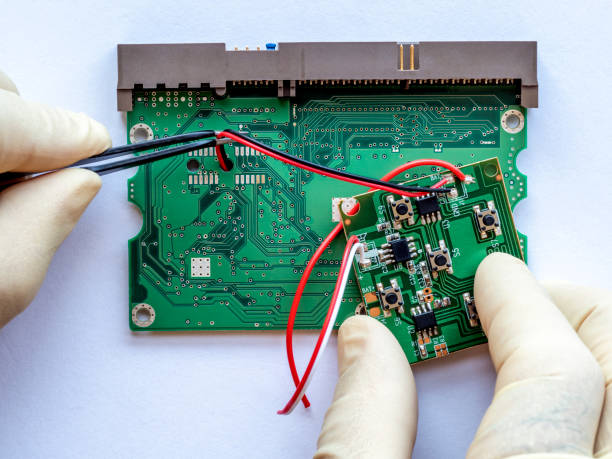
If the file isn’t there, decide what kind of loss you’re dealing with. A simple accidental deletion on a healthy drive is different from a drive that clicks, beeps, or isn’t recognized at all. If the drive is making strange noises or shows up as unreadable, stop. Don’t shake it, freeze it, or put it in rice. Those tricks are myths and can make professional recovery harder. Hardware failure needs a specialist. For a camera memory card, don’t format it and don’t take new pictures. Put it aside and use a different card.
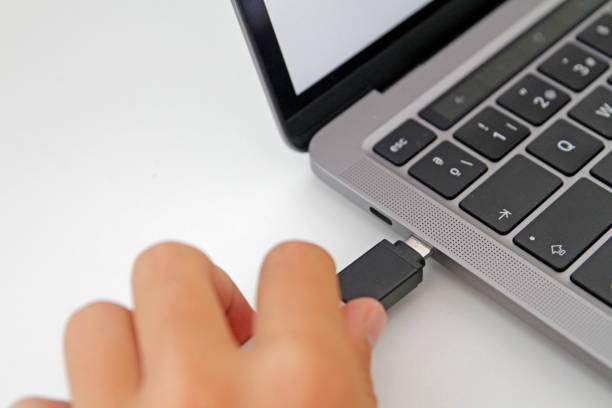
For ordinary deleted files on a healthy drive, recovery software can help. Install the software on a different drive than the one you’re trying to recover from. If your laptop’s internal drive lost files, download the tool to an external USB drive and run it from there. If an external drive lost files, install the tool on your computer and scan the external drive. Free trials usually let you scan and preview files, so you can see if recovery is possible before paying. Avoid sketchy downloads from random ads. Recovery is not magic. Files that were partly overwritten may come back damaged or not at all.
Cloud backups can save you, but only if you set them up before disaster. The classic rule is three copies of important data, on two different types of media, with one copy off-site. In plain language, that means your main device, an external drive, and a cloud service or a drive kept somewhere else. For phones, turn on automatic photo backup and check it once a month. For computers, use File History, Time Machine, or a simple backup app. The best backup runs without you remembering it.
Also think about version history. Sometimes a file isn’t deleted but corrupted or saved over. Cloud apps and some backup tools keep older versions. Right-click the file and look for version history or restore previous version. In Google Docs and Office 365, you can roll back. This is not a backup, but it can save you when you edit the wrong paragraph or a formula goes wild.
Finally, practice a recovery drill before you need it. Pick an unimportant folder and restore it from backup. Check that your cloud sync isn’t just mirroring deletions. Many people discover too late that their cloud service copied the mistake instead of protecting them. If a file matters, it should exist in at least two places you control. If it only exists in one place, it is already at risk. Data safety isn’t paranoia. It’s about making the scary moment boring. When you know where your backups are and how to use them, a lost file becomes an inconvenience instead of a catastrophe.