An external drive looks like the simplest fix for a full computer. You plug it in, drag a few folders over, and feel safe. That feeling is often a trap. A drive is not a backup until it is part of a routine you repeat without thinking. Done right, it is boring, labeled, tested, and separate from the files you use every day. Done wrong, it becomes a second place for important files to disappear.
Start by matching the drive to the job. A spinning hard disk drive, or HDD, gives you lots of space for little money. It is perfect for backups, archives, and media collections that do not need to open instantly. It is mechanical, so it hates being dropped or moved while running. A solid state drive, or SSD, is faster, quieter, and more forgiving of movement. It costs more, so it makes sense for portable work, video editing, or speed. For a home backup, a large HDD from a known brand is the smart buy. For a drive that rides in a bag, an SSD is worth it.
Capacity is where people get weird. Buying the biggest drive you can afford feels efficient, but one giant drive is still one point of failure. Buy two reasonable drives instead. Keep one connected for regular backups and one somewhere else, then rotate them. A power surge, a spilled drink, or ransomware does not take every copy.
The old rule still works: three copies, two different types of media, and one copy offsite. Your laptop holds the working copy. An external drive holds a local backup. A cloud service or a second drive at a friend’s house holds the offsite copy. You need at least one copy not in the same room as the original. If your house floods or burns, a drive next to your computer is just another victim.
Formatting matters more than most people admit. If you only use Windows, format the drive as NTFS. If you only use a Mac, use APFS or Mac OS Extended. If you move files between both, exFAT is easy but less robust. Do not format until you are sure. Formatting erases everything. Turn on encryption if the drive is portable. A lost backup drive with tax returns and family photos is a disaster. A lost encrypted drive is annoying, not catastrophic. Write down the password somewhere safe.
Naming and labeling sound fussy, but they save you. When you plug in two drives, drive letters change. Give each volume a clear name like HOME-BACKUP-A or PHOTOS-ARCHIVE. Put a physical label on the case. Keep a note about what each drive holds and when it was updated. Do not dump everything into a folder called stuff. Future you will forget what stuff means.
Use backup software instead of dragging folders by hand. Manual copying works until you forget, and you will forget. A good backup tool can schedule runs, keep versions, and tell you when something fails. Check the log once in a while. If the software says the backup completed, open the drive and confirm that today’s files are there. A backup you have never restored is not a backup. It is a hope. Once a month, open a random file from the backup. Once a quarter, restore a folder to a spare location. That test separates confidence from surprise.
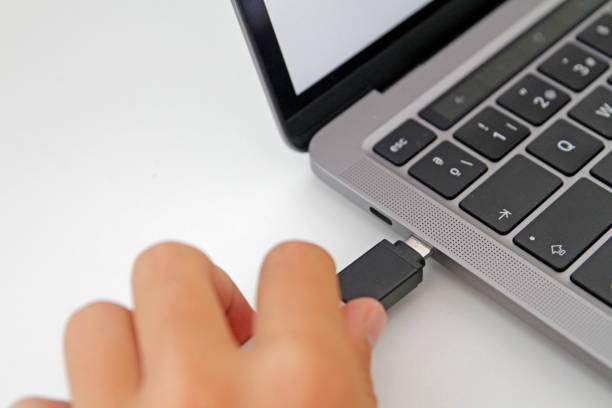
Treat the drive well. Use a good cable and plug directly into the computer when possible. Bus-powered drives can behave badly on weak hubs. Eject safely before unplugging. Do not yank the cable during a write. Keep the drive cool, dry, and still. Check its health with the manufacturer’s tool or CrystalDiskInfo. Strange clicking, slow transfers, or SMART warnings mean replace it now. Even SSDs fail without warning.
Finally, make the routine easy. Put a reminder on your calendar. Plug in the backup drive. Let it run. Put it back in its safe place. Keep one drive offsite and swap it every few weeks. External drives done right are not exciting. They are the reason a bad day stays a bad day instead of the day you lost everything.