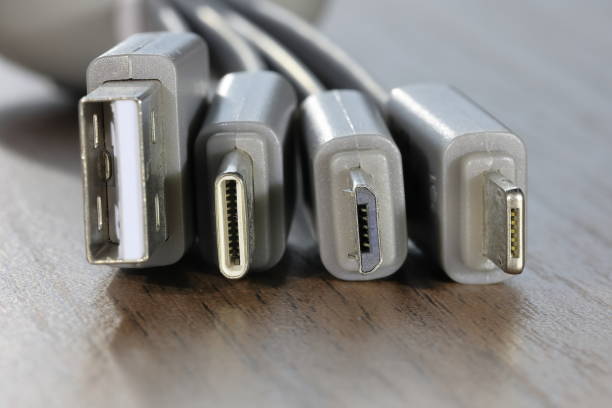
The USB-C connector has become the plug everyone recognizes, from phones and laptops to monitors, game consoles, and wall chargers. That tiny oval shape promises convenience. It plugs in either way and feels sturdy. The problem is that “USB-C” describes the shape of the plug, not the talents inside the cable. Two cables can look identical and behave completely differently. One might charge a laptop at full speed and send video to a monitor. Another might only trickle-charge a phone and refuse to move a single photo. Knowing why that happens saves an afternoon of cable swapping.
The first thing to understand is that the port and the cable are partners. A fast laptop port cannot make a slow cable fast. A powerful charger cannot push more power through a cable that was never built to carry it. Many cheap USB-C cables are designed mainly for charging. They may contain only the basic wires for power and USB 2.0 data, which runs at a modest 480 megabits per second. That is fine for charging a keyboard or syncing a few documents. It is painfully slow for copying a movie folder or backing up a phone full of photos. Better cables add more wires and shielding, and they may include a small chip called an e-marker that tells devices what the cable can safely do.
Power is where USB-C gets especially confusing. The connector can carry anywhere from a few watts to enough juice for a large laptop. USB Power Delivery lets devices negotiate. A cable without the right electronics might cap charging at 60 watts, or even less. A cable with a proper e-marker can handle 100 watts, and newer cables can reach 240 watts. Using the wrong cable can leave your laptop crawling while it charges, or cause a cheap cable to heat up. If a powerful charger still charges your device slowly, the cable is the first suspect.
Data speed is another hidden difference. USB-C cables may support USB 2.0, USB 3.2, USB4, or Thunderbolt, and the names are a mess. For charging a phone or connecting a mouse, speed rarely matters. For an external SSD, game capture device, or video editing drive, it matters a lot. A cable rated for 5 gigabits per second is decent. A 10-gigabit cable is better. A 40-gigabit Thunderbolt or USB4 cable is excellent but usually more expensive. The cable can become the bottleneck that makes a fast drive feel slow.
Video over USB-C adds another layer. Many monitors, docks, and adapters use USB-C to carry video through DisplayPort Alt Mode. Some also support HDMI or Thunderbolt. Not every USB-C cable has the wires for video. A charging cable that works perfectly for your phone may show nothing on a monitor. If your screen stays black, try a cable that specifically mentions video, DisplayPort, Thunderbolt, or USB4. The same rule applies to docking stations. A dock may need more bandwidth than a basic cable can provide, especially with a high-resolution monitor, Ethernet, and USB accessories running at once.
Thunderbolt and USB4 are the high-end versions of USB-C. They use the same plug but offer faster data, better video support, and often more power. They are great for creative professionals who move huge files or run multiple displays. For most people, a well-made USB-C cable rated for 100 watts and 10 gigabits per second is the sweet spot. It will charge a laptop, connect an SSD, and handle a monitor in many cases. You do not always need the most expensive cable, but you do need one that matches your job. Buying a random cable and hoping for the best is how mystery problems start.
When shopping, look past words like “fast charging” and “high speed.” Check the actual wattage, data rate, and video support. Look for USB-IF certification or a reputable brand. If the specs are missing, assume the cable is basic. Label your cables at home with tape or colored bands. Keep one do-it-all cable in your bag and leave the cheap ones for low-stakes charging. If something acts strange, swap the cable first. It is the easiest test and often the answer.