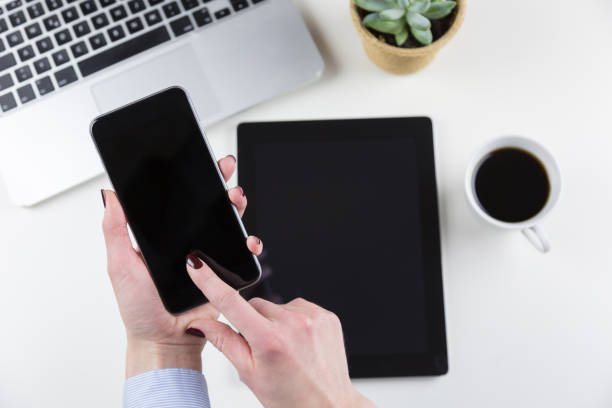
An old tablet that still turns on is not junk. It is a touchscreen, a Wi-Fi radio, and a battery wrapped in glass, which means it can become one of the most useful peripherals on your desk. Instead of letting it collect dust in a drawer, mount it near your monitor and turn it into a dedicated control center. It can show your calendar, run smart home buttons, control music, display stream chat, or act as a second screen for guides and notes. You do not need to be technical. You need a charger, a stand or mount, and a little patience.
The first decision is where it lives. The best spot is usually just below your main monitor, angled slightly upward, or beside your keyboard. It should be visible without turning your head and reachable without knocking over your coffee. A cheap tablet stand works, or a magnetic car mount if you attach a metal plate to the back. Command strips can hold a lightweight tablet to a desk or wall, but avoid covering vents or speakers. Keep it out of direct sunlight and away from heaters. Heat is the real enemy of an always-on tablet.
Next, make the tablet boring in the best way. Factory reset it if you can, then update it and remove games, social media, and anything that will distract you. Turn off lock screen security so it wakes with a tap, or set a long timeout. Enable developer options if you want to keep the screen awake while charging. Most tablets have a setting for that. Turn off notifications for everything except the apps you actually want on the dashboard. A control center with pop-ups is just a noisy phone.
Software is where the fun starts. For a simple setup, use the tablet’s browser in full-screen mode and make a homepage with links to the sites you use most. That could be your calendar, weather, music, smart home dashboard, or project board. If you want something more polished, apps like Home Assistant, Touch Portal, and Stream Deck Mobile turn a tablet into a customizable button pad. Content creators can use them to switch scenes, mute microphones, play sound effects, or read chat without alt-tabbing away from a game or recording. For movie nights, the tablet can control Plex or Jellyfin, dim smart lights, and adjust subtitles while your phone stays in your pocket.
Input matters too. The touchscreen is already an input device, but you can add a Bluetooth keyboard and mouse if you want to type notes or search quickly. A small USB hub or dongle can connect wired accessories, though check what your tablet supports before buying anything. If the tablet has USB-C, a hub with HDMI can sometimes send video to a TV, but do not count on it for every model. The point is not to turn the tablet into a laptop. The point is to give it one job and let it do that job well.
Charging is the part people forget. An always-plugged-in tablet will slowly cook its battery. If you can, use a smart plug to charge it only during the day and let it run on battery at night. Some tablets have a battery protection mode that stops charging at eighty percent. If yours does not, check it every few months for swelling. Keep the cable tidy with clips or a sleeve. A loose charging cable dangling behind your monitor makes a cool project look messy.
The best projects start small. Pick one use case for the first week. Maybe it is a family calendar, a stream control deck, or a retro gaming scoreboard. Use big buttons, dark backgrounds, and clear labels. Do not fill the screen with twenty tiny icons. After a week, you will know what you actually reach for. Then add one thing. A dedicated tablet becomes useful when it reduces friction, not when it shows off every gadget you own.
If you do not have a spare tablet, an old phone works just as well. Mount it, charge it safely, and give it a clear purpose. This is a weekend upgrade that costs almost nothing, keeps useful hardware out of a drawer, and makes any desk feel more custom. You do not need a fancy setup to get the most out of your devices. You just need to look at the hardware you already own and ask what else it can do.