The cable behind your desk is not just a cable. It is a negotiated highway between your device and your screen. When it works, you never think about it. When it does not, you get flickering, black screens, washed-out colors, or that annoying message about an unsupported resolution. The good news is that you do not need to memorize every spec sheet. You only need to match the cable to the job. Start with three questions. What resolution do you want? How fast do you want the screen to refresh? Do you need extras like HDR, variable refresh rate, or audio return? Those answers tell you how much bandwidth the cable must carry. If the cable cannot keep up, your setup will fall back to something lower, or it will simply give up.
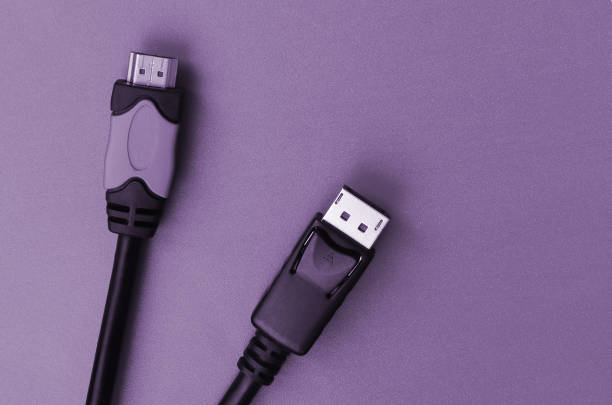
HDMI is the default for televisions, game consoles, streaming boxes, and soundbars. For a basic 1080p TV, almost any HDMI cable will do. For 4K at 60Hz with HDR, you want a Premium High Speed HDMI cable. For 4K at 120Hz, 8K, eARC, and variable refresh rate, you want Ultra High Speed HDMI. Not every cable labeled HDMI 2.1 is truly ready for those features, so look for certification. HDMI is brilliant in the living room because it can carry video and audio together, which means one cable from your console or streaming stick to the TV, and one cable from the TV to the soundbar or receiver. If you are setting up a movie night, HDMI is usually the simplest path.
DisplayPort is the cable you want for computer monitors. It was built for PCs, and it handles high refresh rates and high resolutions with less drama. A DisplayPort 1.4 cable can run 4K at 120Hz with compression, and it is common on gaming monitors. DisplayPort 2.0 and 2.1 push even further, supporting 4K at 240Hz and 8K. It also supports daisy chaining, which lets you run one cable from your laptop to a monitor, then another from that monitor to a second monitor. That is a huge help for multi-screen work. If you have a gaming PC and a monitor with both HDMI and DisplayPort, use DisplayPort. HDMI is fine, but DisplayPort usually gives you more headroom for high refresh gaming and adaptive sync.
USB-C is the wild card. It can carry video, data, and power, but not every USB-C port or cable does all three. A USB-C port with a little DisplayPort icon can send video. Thunderbolt 3, Thunderbolt 4, and USB4 are even safer bets because they guarantee high-speed data and video support. The cable matters just as much. Many USB-C cables are charge-only, so they will not send a picture to a monitor. If you want one cable to connect a laptop to a monitor, charge it, and run peripherals, look for a USB-C cable rated for video or a Thunderbolt cable. This is the cleanest setup for mobile devices and thin laptops, but only when the port and cable both support the features you need.
Older gear still matters. VGA is analog, and it gets blurry at high resolutions, but it is sometimes the only option on an old projector. DVI is digital in its DVI-D form and can often be adapted to HDMI with a simple passive adapter. VGA to HDMI requires an active adapter, and those can be hit or miss. Keep a small adapter in your bag if you give presentations, but do not spend much on legacy cables. They are a bridge, not a destination.
Length and build quality matter more than fancy marketing. Passive copper cables work well for short runs. HDMI over about fifteen feet at high bandwidth can start to fail, so for long runs you want active HDMI or fiber optic HDMI. DisplayPort also has active cables for longer distances. USB-C and Thunderbolt cables have length limits too, especially at high speed. Braided jackets and right-angle connectors are nice for comfort and cable management, but gold plating will not improve a digital picture. Digital video either works or it does not. What does matter is certification when you are pushing high bandwidth over a long distance.
Adapters and docks can save you from buying new gear. A Thunderbolt dock can turn one laptop port into multiple monitor outputs, Ethernet, USB, and charging. A small USB-C hub with HDMI is enough for a presentation. For a home theater, connect your sources to the TV or receiver, then use eARC to send high-quality audio back to the receiver. For gaming, enable variable refresh rate and 120Hz if your screen supports it, and use a certified cable. For content creation, prioritize color accuracy, resolution, and stable connections. For mobile devices, keep it simple and check that the hub supports the resolution you actually use.
The practical rule is simple. Match the cable to the port, check the maximum resolution and refresh rate, buy certified cables for high-bandwidth jobs, and keep runs reasonable. Label your cables. Test everything before you hide wires in a wall. If the screen flickers, swap the cable first. You do not need to become an engineer. You just need the right cable for the screen, the device, and the way you actually use them.