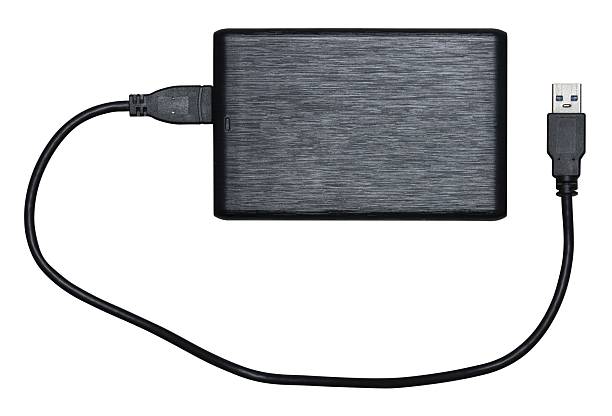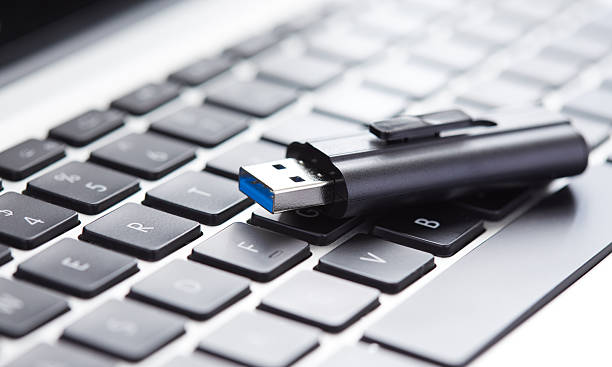
You bought an external SSD. The box says 2,000 MB/s. You plug it into your laptop, copy a movie, and it crawls. What gives? Most people blame the drive. Usually, the drive is fine. The bottleneck is the chain between drive and computer. External storage is not one thing. It is a conversation between drive, enclosure, port, cable, software, and how you use it. If any part speaks a slower language, everything waits.
The biggest confusion is USB-C. It is just a plug shape. It says nothing about speed. A USB-C port can be USB 2.0, USB 3.2 Gen 1, USB 3.2 Gen 2, USB 3.2 Gen 2x2, Thunderbolt 3, Thunderbolt 4, or USB4. They look identical but are not. USB 2.0 tops out around 480 Mbps, about 60 MB/s in real life. USB 3.2 Gen 1 is 5 Gbps, roughly 500 MB/s. Gen 2 is 10 Gbps, roughly 1,000 MB/s. Gen 2x2 is 20 Gbps, but not many computers support it. Thunderbolt and USB4 can hit 40 Gbps, though real file transfers rarely max that out. If your SSD is plugged into a slow port, it runs at the slow port’s speed.
Cables matter just as much. Every USB-C cable looks similar, but not every cable carries data at high speed. Some are charge-only. Some are USB 2.0. Some support 5 Gbps, some 10, some 40. If you grab a random cable from a drawer, you may throttle a fast drive to a crawl. Use the cable that came with the drive, or buy a certified cable that clearly states the speed and power rating. For Thunderbolt and USB4, cable quality is not optional. It is part of the spec.
Then there is the drive inside. Not all external SSDs are equal. A SATA SSD in a USB enclosure usually tops out around 500 MB/s. An NVMe SSD can go much faster, but only if the enclosure and connection support it. Some cheap enclosures use slow bridge chips. Some drives have fast cache that fills up during large transfers, then speed drops. A drive that writes at 1,000 MB/s for the first few gigabytes may fall to 100 MB/s once the cache is full. That is normal for many budget drives, but it feels like a broken promise.
Heat is another silent killer. Fast SSDs create heat. Small metal enclosures can get hot. When they get too hot, they slow down to protect themselves. If you are copying a huge project or game library, a drive that starts fast may slow to a crawl after a few minutes. A drive with a metal body and good ventilation will hold speed longer than a plastic case with no airflow. If you do heavy transfers often, consider a drive with a heatsink or a dock that helps it cool.
Docks and hubs add another layer. A USB hub shares bandwidth among all connected devices. Plug a fast SSD into a hub alongside a webcam, mouse, keyboard, and Ethernet adapter, and the SSD may not get full speed. Some hubs also negotiate a slower USB mode. For the fastest transfers, plug the drive directly into the computer. Use hubs for convenience, not for speed. If you must use a dock, look for one that supports the same speed as your drive and computer.
Software and formatting can also hold you back. Different file systems handle large files differently. exFAT is great for moving between Windows and Mac, but it can be slower for huge transfers. APFS and NTFS are better for native use. Encryption adds overhead. Background backups can compete for bandwidth. A drive that feels slow may simply be busy.
The practical fix is to stop shopping by capacity alone. Check the port on your computer. Check the drive’s rated speed. Check the cable. Check the enclosure. Match them. For backups, a big hard drive is fine and cheap. For video editing, look for sustained write speed, not just peak speed. For gaming, an external SSD can work, but internal NVMe is still better for load times and updates. For everyday files, almost any SSD is fine.
Test your setup with a disk speed tool. Copy a large file both ways. Watch for slowdowns. If the number is far below what you paid for, find the weak link. It is usually the cable or the port. Once you fix that, your external storage will finally feel like the upgrade you wanted.