Your phone or tablet holds more of your life than you probably realize. Photos, videos, chats, contacts, passwords, and settings. Cloud backup is the easy default, and it can be great. But it is not the only way, and for many people it is not the best way. Paid storage adds up, uploads depend on Wi-Fi, and you are trusting a company to keep your data safe and accessible. A local backup gives you something simpler: a copy you can hold, move, and restore without a monthly bill.
The first thing to understand is that not all backups are equal. Syncing is not the same as backing up. If you delete a photo from your phone and it syncs to the cloud, it may vanish everywhere. A true backup keeps a separate copy that survives mistakes. Some services, like iCloud or Google, blend syncing and backup, which makes them convenient but confusing. For a reliable phone or tablet backup, you want a copy that lives outside the device, ideally on a computer or external drive you control.
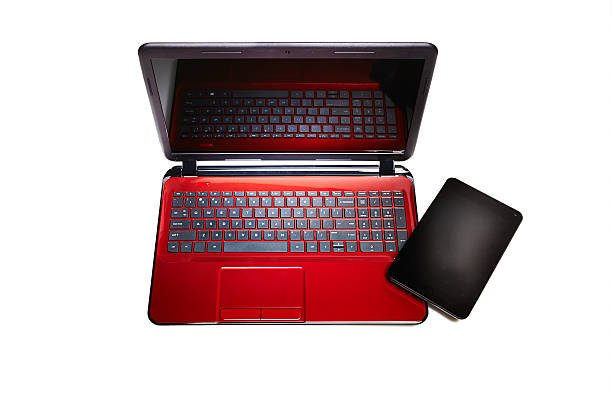
For iPhone and iPad, the built-in local backup is better than most people think. Connect the device to a Mac or Windows PC with a cable. Choose your device and look for the backup option. Select “Encrypt local backup” if you want saved passwords, health data, and smart home settings included. This creates a complete snapshot on the computer. After it finishes, do not stop there. Copy that backup folder to an external drive. A backup that only lives on one laptop is one spilled coffee away from gone.
Android is a little more varied, but the same idea applies. Google’s backup misses plenty of folders and app data. For photos and videos, connect the phone to a computer and copy the DCIM folder. Do the same for Documents, Downloads, and any folder from messaging apps like WhatsApp if you want those chats and media. Samsung users have Smart Switch, which can create a fairly complete backup on a PC. If your phone supports USB file transfer, you can drag and drop the important folders yourself.
Tablets follow the same rules as phones. An iPad backs up through Finder or Apple Devices. An Android tablet backs up through Google, manufacturer tools, or direct file transfer. The bigger screen often means more creative work, so pay attention to drawing apps, note apps, and downloaded video projects. Many apps have their own export options. Use them. A backup strategy that ignores app-specific files is only half a backup.
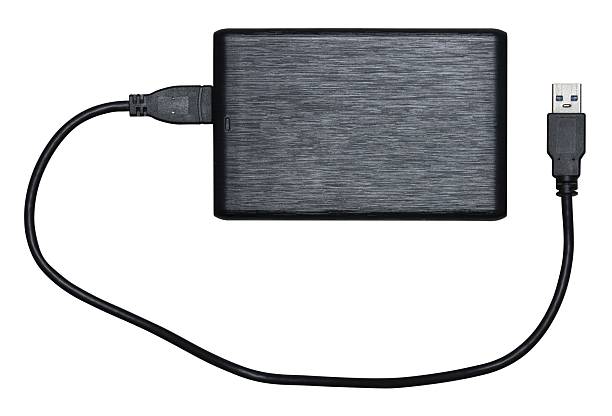
Once you can make a local copy, build a routine. The classic rule is three copies, two different types of media, and one copy somewhere else. For example, your phone has the original, your computer or an external SSD has the first backup, and a second drive kept somewhere else is the offsite copy. If the cloud is part of your plan, that can count as the offsite copy, but do not let it be the only one. A cheap external hard drive can hold years of photos and videos for less than a year of cloud storage.
Do not forget to verify. A backup you never test is just a hopeful pile of files. Open the backup folder. Check that recent photos are there. Restore one unimportant file to see how it works. Write the date on the drive or label the folder. Once a month, plug in your phone or tablet and run a fresh backup. After a vacation, birthday party, or work project, do it immediately. Waiting until you have time usually means waiting until something breaks.
Also protect the backup itself. Keep drives away from heat, magnets, and curious pets. Use encryption if the drive leaves your home. Store your password manager recovery codes somewhere offline. If you use two-factor authentication, save the backup codes. The goal is to know that if your phone falls in a lake, gets stolen, or simply dies, your memories and important files are still yours. Plug in, copy, check, and repeat. That is a backup plan anyone can live with.