Input lag is the delay between what your hands do and what happens on screen. It can make aiming feel mushy, jumps feel late, and menus feel sticky. Most people blame their mouse, their internet, or their own reflexes, but the real cause is usually a chain of small bottlenecks. The good news is that you can fix a lot of it without replacing your entire setup. You just need to find the weakest link and work through the chain one piece at a time.
The biggest offender is often your display. If you game on a TV, turn on Game Mode or Low Latency mode. Many TVs add processing to make movies look smoother, and that processing adds delay. Turn off motion smoothing, noise reduction, dynamic contrast, and film mode. Use the HDMI port labeled Game or PC if your TV has one. Connect your console or computer directly to the TV instead of running through an old receiver or splitter. On a monitor, make sure your computer is actually set to the highest refresh rate available. A 144Hz monitor running at 60Hz is a waste. Check your cable too. Old HDMI cables can limit refresh rate, and DisplayPort is usually the safer bet for high refresh gaming.
Frame rate and sync settings matter just as much. Higher frame rates reduce input lag because the screen updates more often. In games, lower graphics settings until you get a stable frame rate. Stability beats peak numbers. A steady 120 frames per second feels better than a bumpy 200. Turn off V-Sync unless you are using G-Sync or FreeSync. V-Sync can add noticeable delay. If you have variable refresh rate, use it and cap your frame rate a few frames below your monitor’s maximum. Use exclusive fullscreen when a game offers it. Windowed modes can add overhead. Also check that Windows Game Mode is on, and turn off unnecessary overlays that might cause stutter.
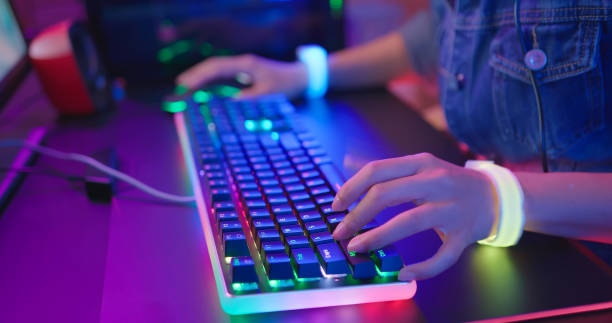
Your mouse and keyboard are next. A wired mouse is still the simplest low-lag option, but modern wireless is excellent. If you use a wireless mouse, put the USB dongle close to your mouse using an extension cable, and avoid plugging it into a hub or front-panel port. Disable mouse acceleration in Windows and in your games. That single setting makes aim more predictable. DPI is personal, not a lag setting. Higher DPI does not automatically mean less delay. Find a sensitivity that lets you track targets smoothly, then leave it alone. For keyboards, avoid Bluetooth for competitive games if you can. A wired keyboard or a 2.4GHz wireless model is more reliable. Update firmware for your mouse, keyboard, and controller when updates are available.
USB ports and controllers deserve a quick check. Plug important peripherals into the rear ports directly on the motherboard. Front-panel ports and unpowered hubs can introduce inconsistent behavior. For consoles, a controller connected by Bluetooth adds a little delay. Plug it in with a cable or use the official wireless dongle if you want the lowest latency. Keep batteries charged, because low power can affect signal reliability. Network lag is different from input lag, but it feels similar. Use Ethernet for online games when possible. If you must use Wi-Fi, reduce interference by moving your router or using a cleaner channel. Close background downloads and choose the nearest game server. A good ping will not fix a slow display, but a bad connection can make everything feel broken.
Audio can also betray you. Bluetooth headphones often add noticeable delay, which is fine for music but awful for competitive shooters. Use wired headphones or a 2.4GHz wireless headset with a dedicated dongle. If you use TV speakers, keep Game Mode on so audio and video stay together. For immersion, a little latency in sound is less critical, but for timing-based games it matters.
Software and heat are sneaky culprits. Update your graphics drivers. Close background apps that eat CPU or disk time. Set Windows to High Performance or Balanced with a strong power plan. On a laptop, plug in the charger and make sure vents are clean. Thermal throttling causes stutters that feel exactly like input lag. RGB software and launchers can also hog resources, so close what you are not using.
Change one thing at a time and test in a practice range or a familiar game. If a change does not help, revert it. Your brain adapts quickly, but only if the setup stays consistent. If you still need an upgrade, prioritize a low-latency high-refresh monitor, then a reliable mouse, then a keyboard. But most people get huge gains from settings alone. Fix the display, disable V-Sync, wire what you can, and reduce background load. Your gear is probably better than you think, and your aim is waiting for the setup to get out of its way.