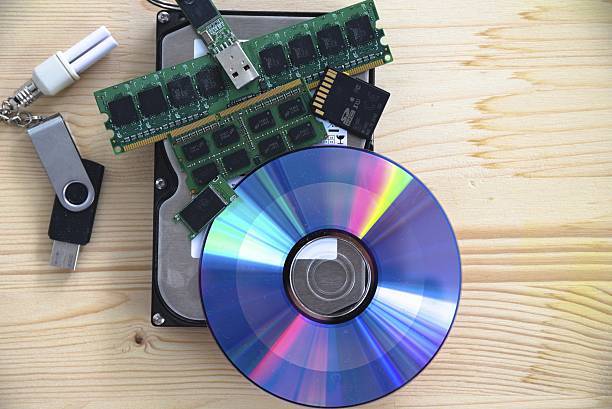
External drives are boring until the day your laptop dies, your phone falls in a lake, or ransomware eats your project folder. Then they become the most important gadget you own. It is about treating your external drive as part of a system. If you plug it in once, drag a few files over, and forget it, you do not have a backup. You have a copy with a false sense of security.
Start by deciding what you cannot lose. Family photos, tax documents, client work, game saves, video edits, that novel you have been writing for three years. Back up those first. Storage is cheap, but attention is not. The classic rule is three copies, on two different kinds of media, with one copy offsite. An external drive can be your second copy. A second external drive you rotate to a friend’s house or a safe deposit box can be your offsite copy. Cloud storage can also be the offsite piece, especially for documents and photos.
Now choose the drive. Hard drives are still the best value for big backups. A desktop hard drive with its own power supply can hold many terabytes for modest money. It is great for archives, old projects, and media libraries. A portable hard drive is smaller and cheaper, but it is more fragile. Do not toss it around while it is spinning. External solid-state drives cost more per terabyte, but they are faster, silent, and handle bumps better. If you edit video, work with huge photo catalogs, or carry projects between machines, an SSD is worth it.
Do not get fooled by ports. USB-C is a shape, not a speed. The same oval connector can hide slow USB 2.0 or fast USB 3.2 Gen 2. Check the rated speed and the cable. A great drive on a bad cable is a slow drive. Plug directly into the computer when you can. Unpowered hubs and cheap adapters can cause disconnects during writes, which is how drives get corrupted. If you use a desktop drive, give it stable airflow. Heat shortens life.
Format the drive for your real life. If you only use Windows, NTFS is solid. If you only use a Mac, APFS is the modern choice. If you move between Windows and Mac, exFAT is the usual compromise, but it is less resilient. Name the drive something clear. Leave some free space. A drive that is 100 percent full is slow and unhappy.
Then automate. Manual backups fail because people get busy. Windows has File History and Backup. macOS has Time Machine. Free tools like FreeFileSync and Duplicati can mirror folders or send encrypted backups. Paid services can do full system images. Pick one and schedule it. The best schedule is one you will not cancel. After the first backup, unplug the drive or eject it properly. Ransomware can encrypt drives that are connected.
Test your restore. This is the step almost everyone skips. Delete a test file, then restore it. If you cannot restore, you do not have a backup. Also keep more than one version. If a file gets corrupted and you sync that corruption, version history saves you. Rotate drives if you can. One stays connected for convenience. One sits disconnected. One goes offsite. That way a theft, fire, or power surge does not take every copy.
Encrypt portable drives. A lost external drive with unencrypted tax returns is a bad day. BitLocker, VeraCrypt, or a hardware-encrypted drive can protect you. Write down the password and recovery key somewhere safe. Check drive health with tools that read SMART data. Listen for clicking. Watch for slow transfers and weird disconnects. Replace drives every few years, or sooner if warnings appear. An external drive is not permanent. It is a tool, and tools wear out.
For gamers, external SSDs are excellent for PC game libraries and console storage where supported. Keep saves backed up separately. For creators, offload camera cards to an SSD, verify the copy, then format the card. For phone backups, a USB-C SSD can work, but cloud plus a computer backup is often simpler. Buy reliable drives. Connect them properly. Automate the copy. Test the restore. Keep one offsite. It is not glamorous, but it is how you avoid turning a small failure into a permanent loss.