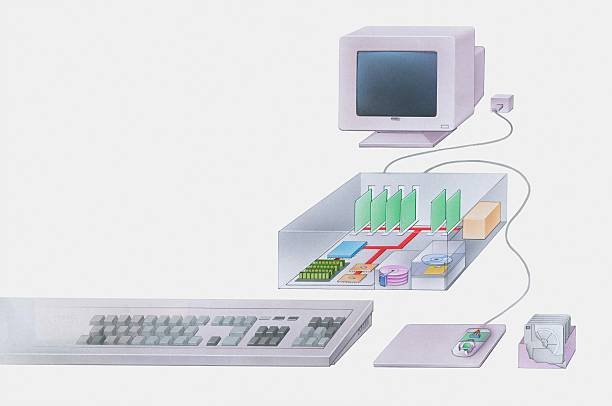
You probably have an old desktop or laptop sitting in a closet. Instead of letting it collect dust, turn it into a home NAS. NAS stands for network attached storage. It is just a computer whose main job is to store files and share them over your home network. Instead of paying a cloud company every month, you keep the hardware, the drives, and the rules. You also become the person who updates it and fixes it. The good news is that the basics are not scary. If you can install an app and plug in a drive, you can build a useful home server.
Start with the computer you already own. Almost any desktop from the last ten years can work. A laptop with a broken screen can work too. Aim for at least four gigabytes of memory, a processor that does not sound like a jet engine, and a wired network connection. Wired Ethernet is faster and more reliable than Wi-Fi for moving big files. If your machine only has USB ports, a USB-to-Ethernet dongle or a powered dock can give you the wired connection you need. For storage, internal hard drives are cheaper and faster, but external USB drives are fine for a first build. Use at least two drives if your data matters. One drive is a single point of failure. RAID can keep you running when a drive dies, but RAID is not a backup. You still need a second copy somewhere else.
The software is where most people freeze. If you want a dedicated NAS system, look at OpenMediaVault, TrueNAS, or Unraid. OpenMediaVault is free and friendly enough for beginners. TrueNAS is powerful but strict. Unraid is easy to expand and has a paid license. If you already have Windows on the old PC, you can simply share folders and use backup software. The best choice is the one you will actually maintain. Get one share working first.
For media streaming, install Plex or Jellyfin on the server. Jellyfin is free and open source. Plex is polished and has apps everywhere. Point the app at your movies, shows, music, and photos. Then install the client app on your TV, phone, tablet, or streaming stick. If your files are in a common format, the server can send them directly to the player. That is called direct play. If the player does not support the format, the server may transcode it, which takes CPU power. An old desktop can usually handle one or two streams. Start with 1080p and see how it feels.
Setup is mostly common sense. Install the operating system on a small SSD so the server boots quickly. Create shared folders for backups, media, and documents. Make user accounts for each person in the house. Turn on the file sharing service your computers already use, such as SMB for Windows and Mac. Give the server a fixed address on your network by reserving one in your router. Then map the shared folder on your main computer as a network drive. Once that works, point your backup software at it. Windows has File History. Mac has Time Machine. You can also use free tools like Duplicati or Veeam Agent. Test a restore before you trust it. A backup you never test is just a hope.
Security matters even at home. Do not open your NAS to the internet unless you know exactly what you are doing. If you want remote access, use a VPN such as Tailscale or WireGuard. Keep the server operating system and apps updated. Use strong passwords and change the default admin name. If the server holds tax documents or family photos, consider encrypting the drives, but keep the recovery key safe. Encryption can save you from a stolen drive, but it can also lock you out forever if you lose the key.
The point is not to build a data center. The point is to stop paying rent on your own files. Start with one old computer, one or two drives, and one shared folder. Add streaming later. Add remote access later. Add more storage later. You will make mistakes, and you will learn from them. A home NAS is just a computer that works for you instead of against you.