Your backup drive is a copy of your life. It might hold family photos, tax records, game saves, creative projects, client contracts, and a folder of passwords you swear you’ll organize someday. If someone finds it or steals it, encryption is the difference between a bad day and a catastrophe. The good news is that encryption is not just for spies and system administrators. With modern tools, you can protect your files without becoming a security expert. You just need to understand a few plain-English ideas and avoid a handful of common mistakes.
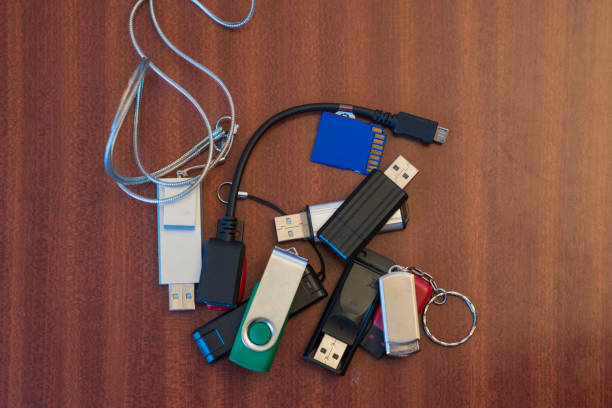
Encryption scrambles your data so it looks like random noise. To read it, you need a key, usually derived from a password or a recovery code. Without that key, the files are useless. That matters for backups because backups often leave your home. An external drive can be lost, stolen, or left in a hotel room. A cloud account can be breached if your password is weak or reused. A laptop that holds a local backup can be stolen from a coffee shop. Encryption means the thief gets hardware, not your history.
There are three main ways people encrypt backups, and they solve different problems. Full-disk encryption protects an entire drive or computer. On Windows, BitLocker is built in. On Mac, FileVault does the same job. On Linux, LUKS is common. When you turn it on, everything on the drive is protected while the drive is locked. Once you log in, your files are available as usual. This is great for laptops, phones, and external drives that stay with one computer. The catch is that full-disk encryption only protects data at rest. If malware is running while you are logged in, it can still read your files.
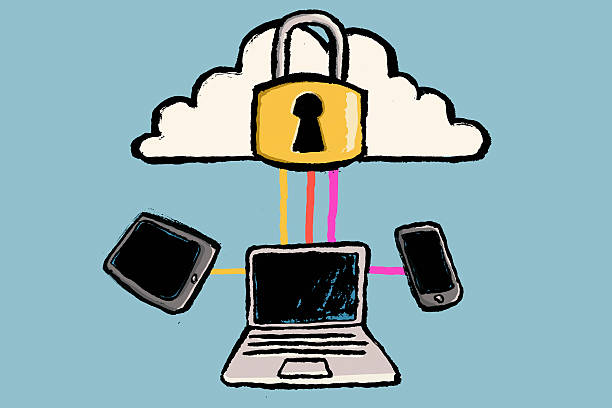
The second approach is an encrypted container. Tools like VeraCrypt or Cryptomator create a locked vault file or folder. You mount it with a password, use it like a normal drive, and lock it when you are done. This is handy for sensitive folders inside a larger backup. You can copy your tax documents, password export, or client work into the vault, then back up the vault like any other file. The third approach is built-in cloud encryption. Some cloud services encrypt files before they leave your device, which means the provider cannot easily read them. Others encrypt data at rest on their servers but may still hold the keys. Read the details, because “encrypted cloud storage” can mean very different things.
A strong password is the foundation, but a lost password is a disaster. Encryption does not care that you are the rightful owner. If you forget the password or lose the recovery key, your data may be gone forever. For that reason, store your recovery key somewhere safe and separate from the backup. A password manager is ideal. You can also write the recovery key on paper and keep it in a locked drawer or safe. Do not store the only copy on the encrypted drive itself. That is like locking your keys inside the car.
Use a long passphrase rather than a short, clever password. Four or five random words can be easier to remember and harder to crack than “P@ssw0rd123.“ Turn on two-factor authentication for cloud backup accounts. Keep your devices updated, because encryption cannot protect you from malware that runs after you unlock the drive. And remember the difference between encryption and backup. Encryption protects privacy. Backup protects against loss. You need both. A common rule is three copies of important data, on two different kinds of media, with one copy off-site. Encrypt the copies that leave your control, especially the off-site one.
If you are new to this, start small. Encrypt your phone and laptop first, since those are most likely to be lost. Then create one encrypted container for your most sensitive documents and include it in your regular backup routine. Test that you can restore a file before you trust the system. A backup you cannot restore is just a security blanket. Finally, label your drives clearly so you do not erase the wrong one during a late-night panic. Good security is mostly boring habits repeated consistently. Encrypt your backups, guard your recovery keys, and you can enjoy the convenience of modern storage without gambling with your private data.