A home NAS sounds like something only a person with a server rack and strong opinions about Ethernet cables would build. It isn’t. NAS stands for network attached storage. In plain English, it’s a computer whose main job is to hold files and share them with your other devices. If you can set up a printer on Wi-Fi, you can set up a basic home NAS. You can buy one in a box, or use an old desktop you already own. It’s about stopping the juggling of USB drives, paying for five cloud plans, and losing track of where your photos, videos, and documents actually live.
The first question is what you want it to do. Most people start with backups. Your laptop, phone, and tablet should have somewhere to dump copies without you thinking about it. Next is file sharing. Instead of emailing a file to yourself or passing around a flash drive, everyone on your home network can open the same folder. A NAS can feed movies, music, and shows to a TV, tablet, or game console through apps like Plex or Jellyfin. You might also want it for security camera footage, scanned documents, or a shared family archive. A NAS that does one thing well is more useful than a complicated project you abandon.
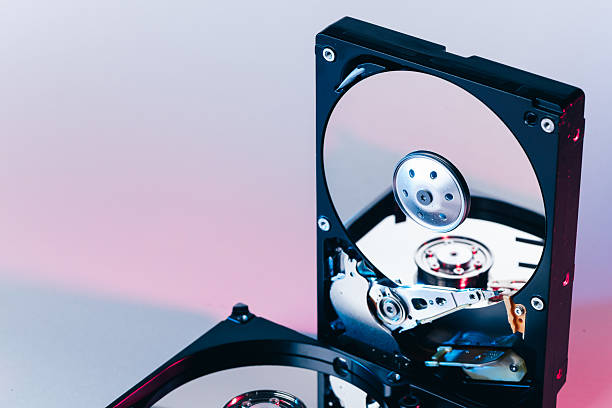
Hardware doesn’t need to be fancy. An old office desktop is often perfect because it has room for a couple of hard drives and a wired network port. You want at least eight gigabytes of memory for a smooth experience, though sixteen is nicer if you plan to run extra apps. A small SSD for the operating system makes everything feel faster. For a first setup, two drives of the same size are sensible. You can mirror them so one can fail without taking your files with it. That’s called RAID 1, and it’s helpful, but it is not a backup. RAID protects against a dead drive, not against deleting the wrong folder, a ransomware attack, or a power surge that fries the whole machine.
Software is where people get scared. TrueNAS is powerful and free but asks you to pay attention. Unraid is friendly and flexible, especially if you want to add drives of different sizes over time. OpenMediaVault is a solid middle ground. If you already have Windows, you can share a folder and call it a day, though you’ll miss out on drive health tools and easy remote access. Prebuilt NAS boxes from Synology and QNAP cost more but come with polished apps and less fiddling. The best software is the one you’ll actually maintain.
Once the system is running, keep the setup simple. Give it a wired connection to your router if possible. Wired is faster and more reliable than Wi-Fi, especially for large backups. Create separate user accounts for each person. Set permissions so nobody accidentally edits your tax documents while looking for movie night. Schedule automatic backups from your computers and phones. Test a restore before you trust it.
Remote access is the part that needs caution. Don’t just open ports on your router and hope for the best. Use a VPN, ideally a simple mesh VPN like Tailscale or WireGuard. That keeps your NAS private while letting your own devices reach it. If you share files with friends, use a reputable service designed for that instead of exposing your whole server.
Check for software updates once a month. Watch drive health warnings. Replace drives before they die if the reports look bad. Follow the 3-2-1 rule: three copies of important data, on two different kinds of media, with one copy offsite. That offsite copy can be a cloud account or a drive at a relative’s house. Your NAS is not invincible. It is just a helpful machine you control.
Start small. Use an old PC, one or two drives, and a simple goal like backing up family photos. Then grow into media streaming, shared folders, and automated backups. A home NAS isn’t about becoming an IT department. It’s about making your digital life calmer, cheaper, and easier to recover when something goes wrong. If you can follow a recipe, you can build one.