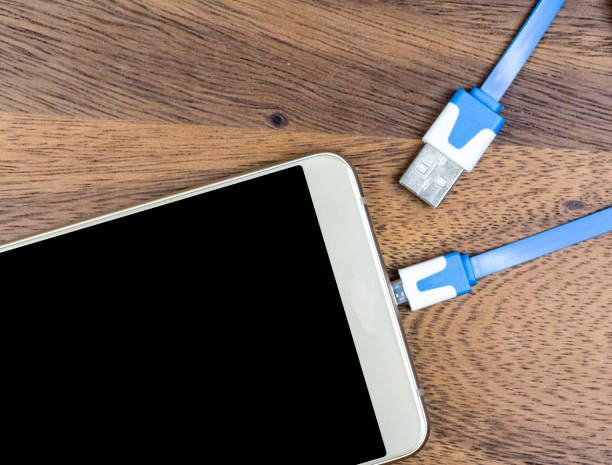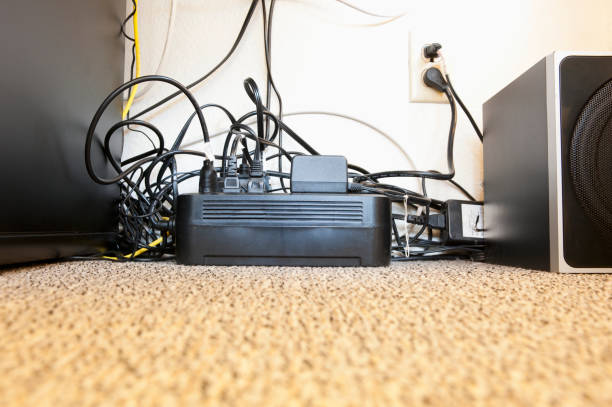
Cables are the least glamorous part of any computer or mobile setup, right up until something stops working. A charging cable that is two inches too short will yank your phone off the nightstand. A monitor cable that is three feet too long becomes a dust-collecting snake behind your desk. The goal is not to hide every cable like you are ashamed of them. The goal is to choose lengths that fit your actual life and place them so they stay put, stay cool, and stay connected.
The first mistake people make is measuring the straight-line distance between a device and a power strip. Real cables do not float through the air. They go around desk legs, behind drawers, under rugs, over monitor arms, and down the back of a TV stand. Use a piece of string or an old charging cable to trace the exact path you want. Then add a little slack. For most desk setups, an extra six to twelve inches at each end gives you room to move the device without stressing the port. For a standing desk, measure with the desk all the way up and all the way down. The cable needs to reach in both positions without pulling tight.
Too much length is its own problem. Extra cable turns into a loop that catches chair wheels, collects pet hair, and invites you to stuff it into a messy ball. Long cables also make it harder to trace a problem later. If you have a fifty-foot Ethernet cable coiled behind your desk when a ten-foot cable would do, you are not future-proofing. You are creating a tripwire. The sweet spot is the shortest cable that reaches with gentle slack and still lets you slide the device forward, turn it, or unplug it without a fight.
Placement matters as much as length. Route cables along surfaces that do not move, like the underside of a desk or the back of a monitor stand. Use adhesive clips, cable trays, or Velcro straps to keep them from sagging. Avoid tight zip ties, because they can crush the cable and damage the wires inside. Leave a service loop near the device, so you can pull the plug without dragging the whole run. Never let a heavy power brick hang from a port. That is how ports get loose, and loose ports are expensive to fix. Keep cables away from sharp edges, hot vents, and moving parts like chair arms and drawer slides.
For data cables, length has practical limits. USB, HDMI, and DisplayPort cables are not magic pipes. A cheap USB cable that is too long may charge slowly or drop your keyboard connection. A long HDMI cable might work fine at 1080p and then flicker at 4K. If you need a very long run, look for an active cable or an extender rather than a passive bargain bin cable. For charging, a longer cable with thin wires will charge slower than a shorter cable with thicker wires. You do not need to memorize wire gauges, but you should notice when a cable gets warm or when your phone charges at a snail’s pace. That is your cue to swap it.
For mobile devices, think about where you actually use them. A six-foot cable is fine for a desk. A ten-foot cable is better for a couch or bed, where you want to scroll while charging. A one-foot cable is perfect for a power bank in a bag. For a wall-mounted TV or a monitor stack, plan the route before you mount anything. Run cables through the wall only if they are rated for it, and leave a pull string for future upgrades. Label both ends with tape or a label maker. Future you will not remember which black cable goes to the router and which one goes to the printer.
You do not need a perfect cable management system. You need a setup that works when you are tired, rushed, or half-awake. Measure the real path, add a little slack, avoid tight bends, and secure the cables so they stay where you put them. Test every connection before you hide it. Then step back. The best cable setup is the one you never think about, because nothing is pulling, tripping, or mysteriously disconnecting.